📖 Complete User Manual
Unified documentation covering all 14 core modules across the React Web Application and the Native Android Mobile Companion App with live demo data from the Smith family (Sarah, John, and Tom).
1. Financial Dashboard & "Safe to Spend"
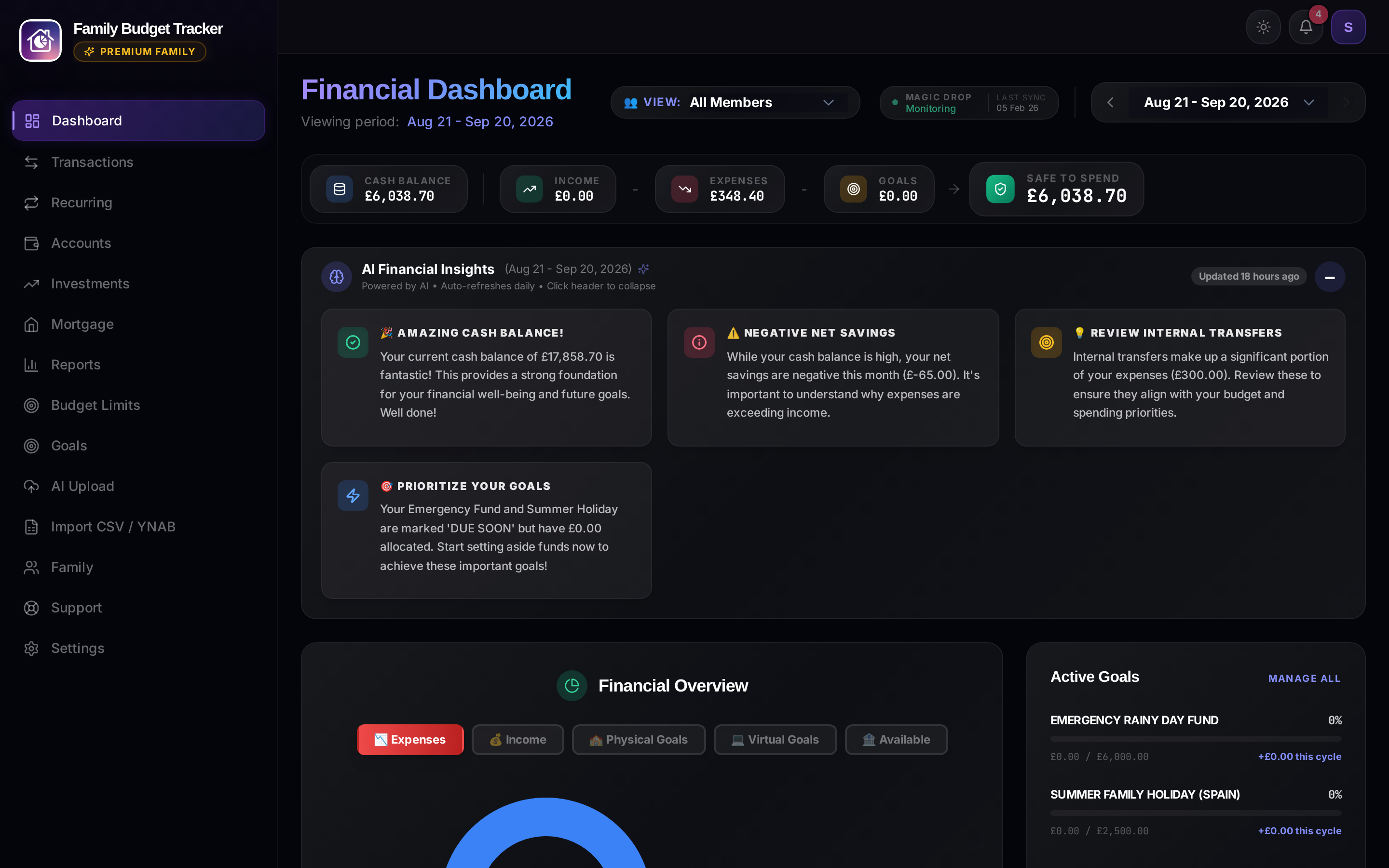
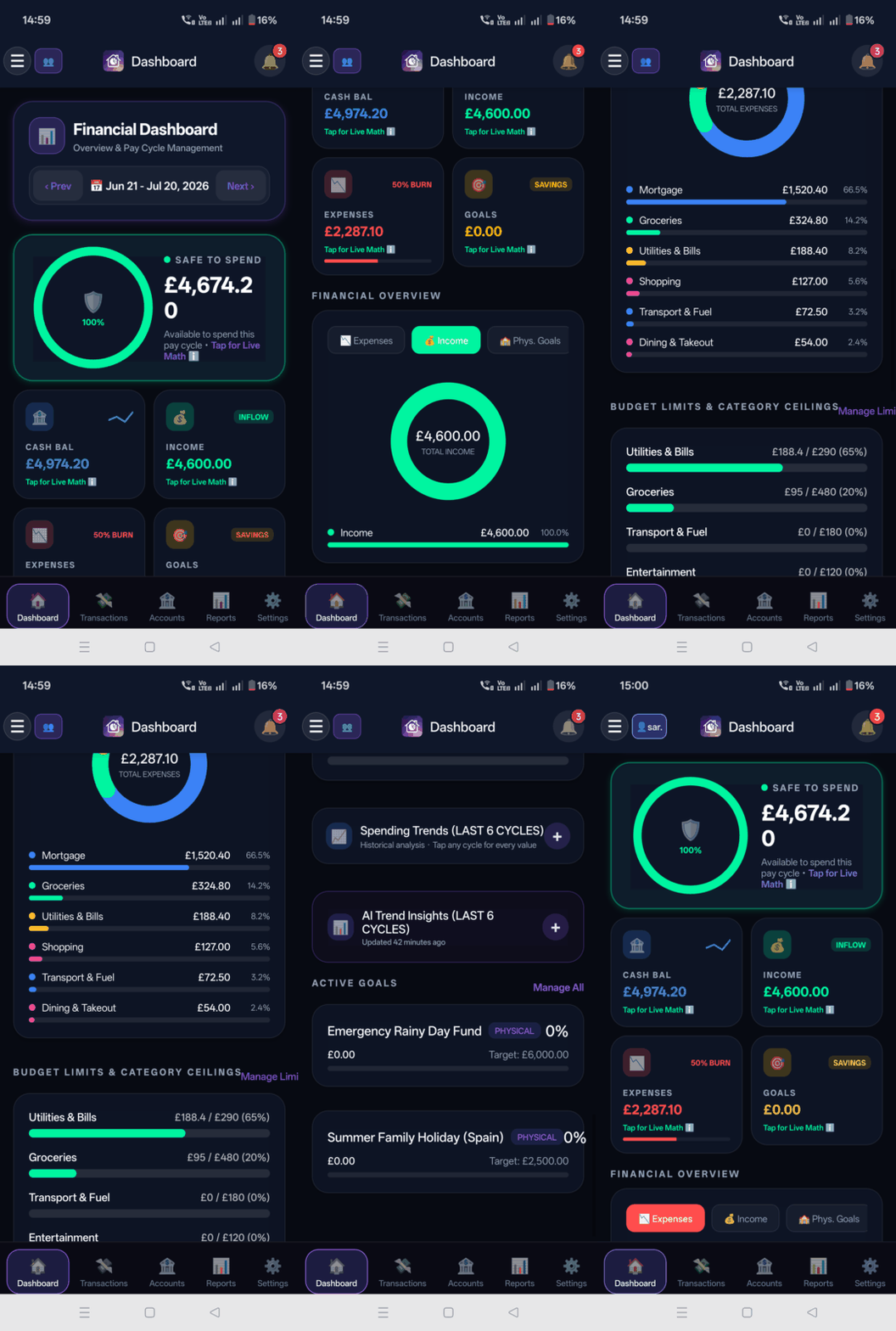
Your household command center displaying live spendable liquidity, income burn velocity, connected accounts, and category metrics.
What It Does
- Displays the central Safe to Spend (S2S) gauge showing exactly how much discretionary money you can spend before your next salary.
- Quick-stat overview cards: Liquid Cash Balance, Inflow Income, Expense Burn, and Allocated Savings.
- Instant family filter chip (
👥 All,👤 Sarah,👤 John) to toggle between household and individual views without layout shifts.
How It Works Under the Hood
Safe to Spend = Liquid Cash Balance − Committed Bills − Active Budget Limits − Physical Goal Reserves
Budgets align to your actual salary dates rather than calendar months. Tapping "Live Math" breaks down the exact arithmetic and contributing accounts.
How to Configure & Use
- Go to Settings → Pay Cycle Settings to set your salary schedule (Monthly, Bi-weekly, or Specific Day).
- Click or tap the Family Filter Chip to switch between personal and combined household totals.
- Use the Next / Prev buttons in the header to inspect previous or projected future cycles.
2. Transactions Feed & Smart Search
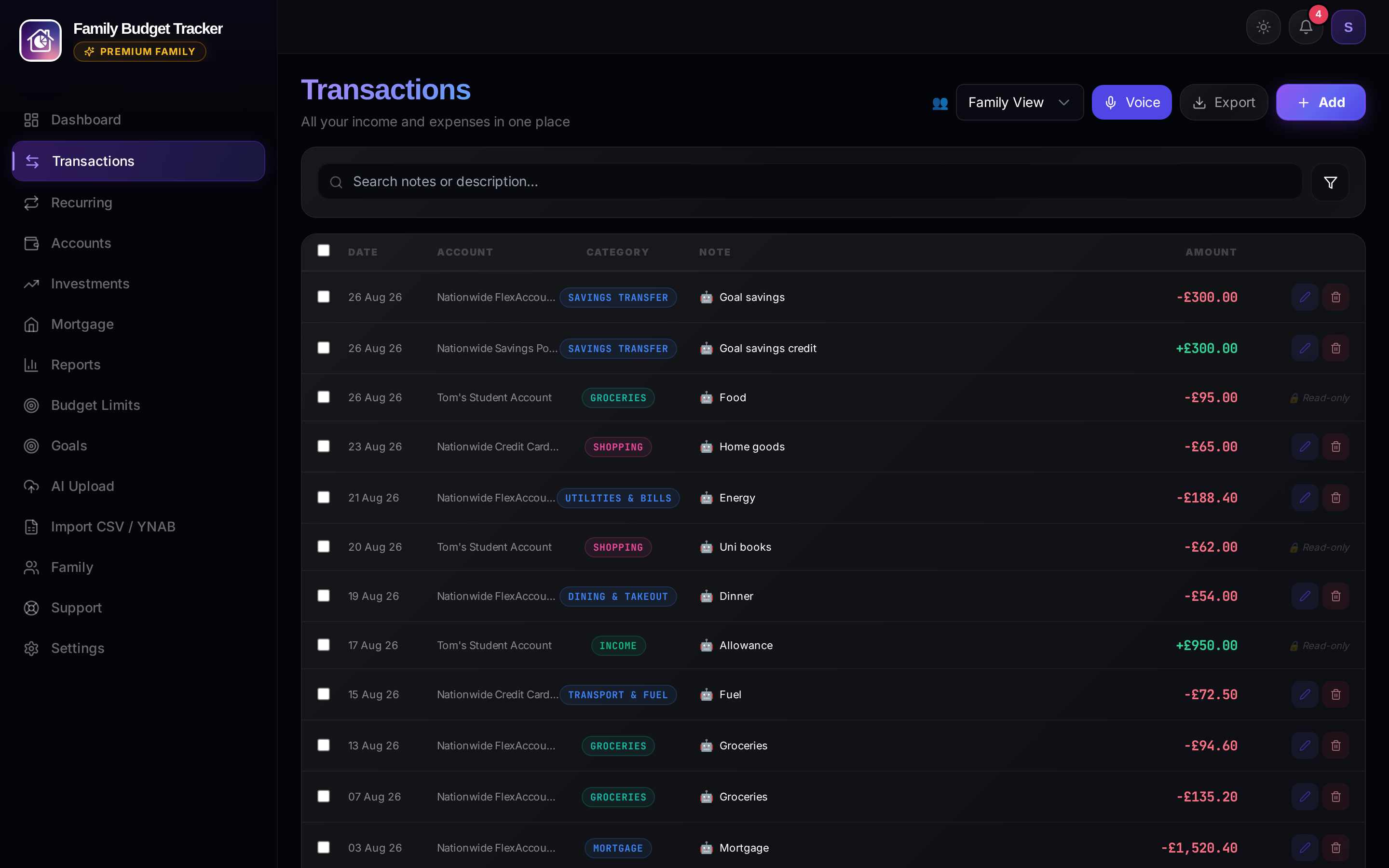
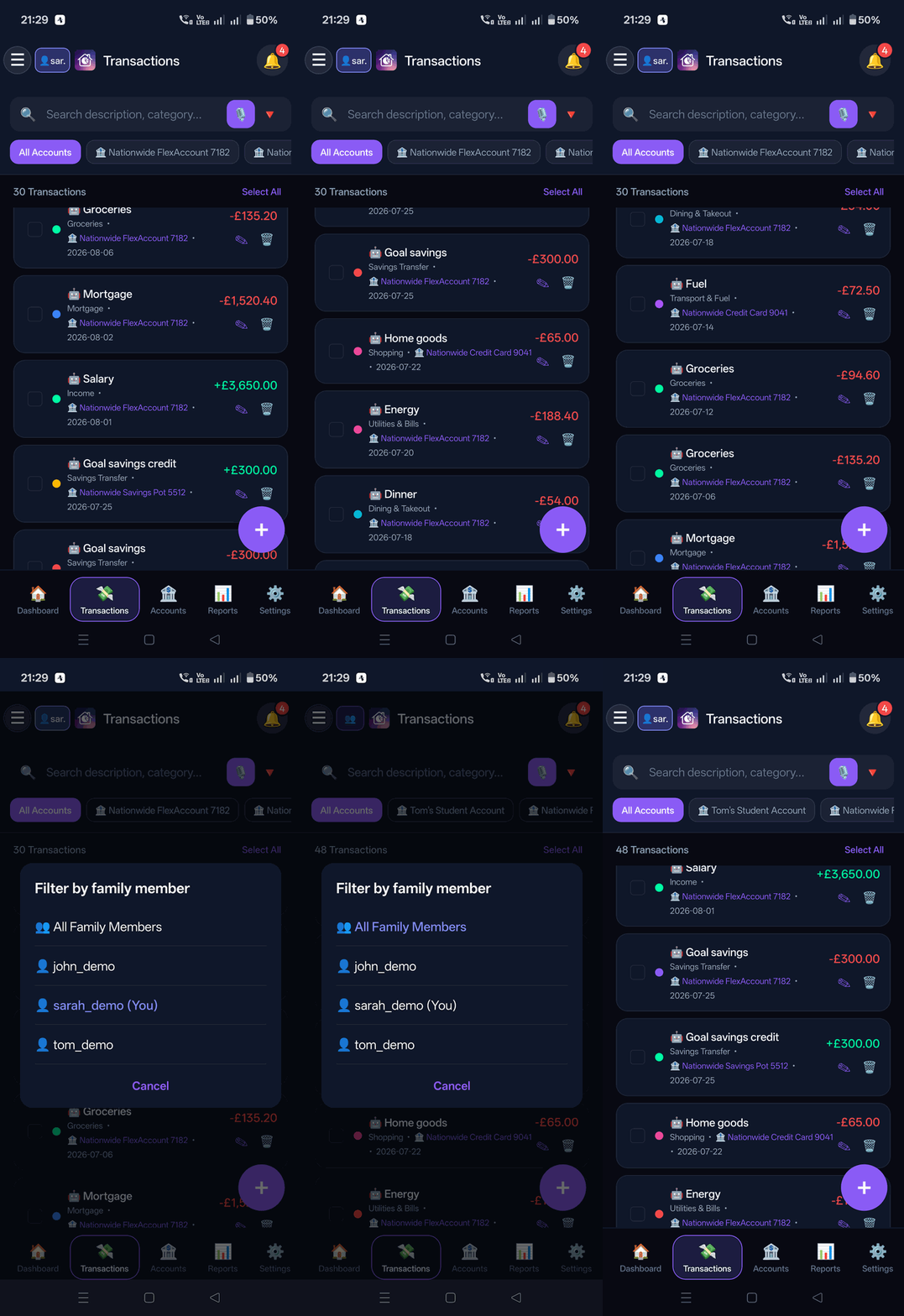
Real-time transaction ledger grouped by monthly pay cycles with running balance audits and instant search.
What It Does
- Live transaction feed with quick category pill filtering (Inflow, Outflow, Groceries, Dining, etc.).
- Real-time search across merchant names, descriptions, amounts, and account tags.
- Inline editing modal, bulk category re-tagging, and receipt attachments.
How It Works Under the Hood
Optimized virtualization handles thousands of historical records at 60fps. The Smart Merchant Matcher learns categorization rules and automatically cleans up noisy bank descriptions (e.g. TFR FROM VANGUARD → Vanguard ISA).
How to Configure & Use
- Filter transactions using top category pills or the search box.
- Select a family member filter to isolate individual spending.
- Click/tap any row to modify category, split costs, or attach notes.
🎙️ Voice Commands & Accessibility (Add, Remove, Filter)
Both Desktop Web and Native Mobile provide deterministic voice transaction actions. Tap the Voice microphone button on the transactions screen to speak:
AddCommands (e.g.Add £20 Costa CoffeeorAdd £60 grocery Sainsburys to Barclays debit on 27 July): Automatically infers today's date, your primary checking account, and categorizes via merchant learning. Pre-populates the Add modal for visual review before saving.RemoveCommands (e.g.Remove £1 Counter CreditorRemove £81.50 Sainsbury on 20 August): Requires exact amount/currency and date or merchant.- Single Match: Instantly opens the transaction modal for confirmation.
- Multiple Matches: Displays a "Choose transaction (N matches)" disambiguation dialog showing dates, accounts, and amounts so you can pick the exact one. Voice never deletes automatically without confirmation.
FilterCommands (e.g.Filter today's transactions,Filter source notification,Filter description Sainsbury category groceries July £50): Instantly applies multi-dimensional filters directly to the live transaction ledger and scrolls to the first matching row, with a 1-tap "Clear voice filters" button.
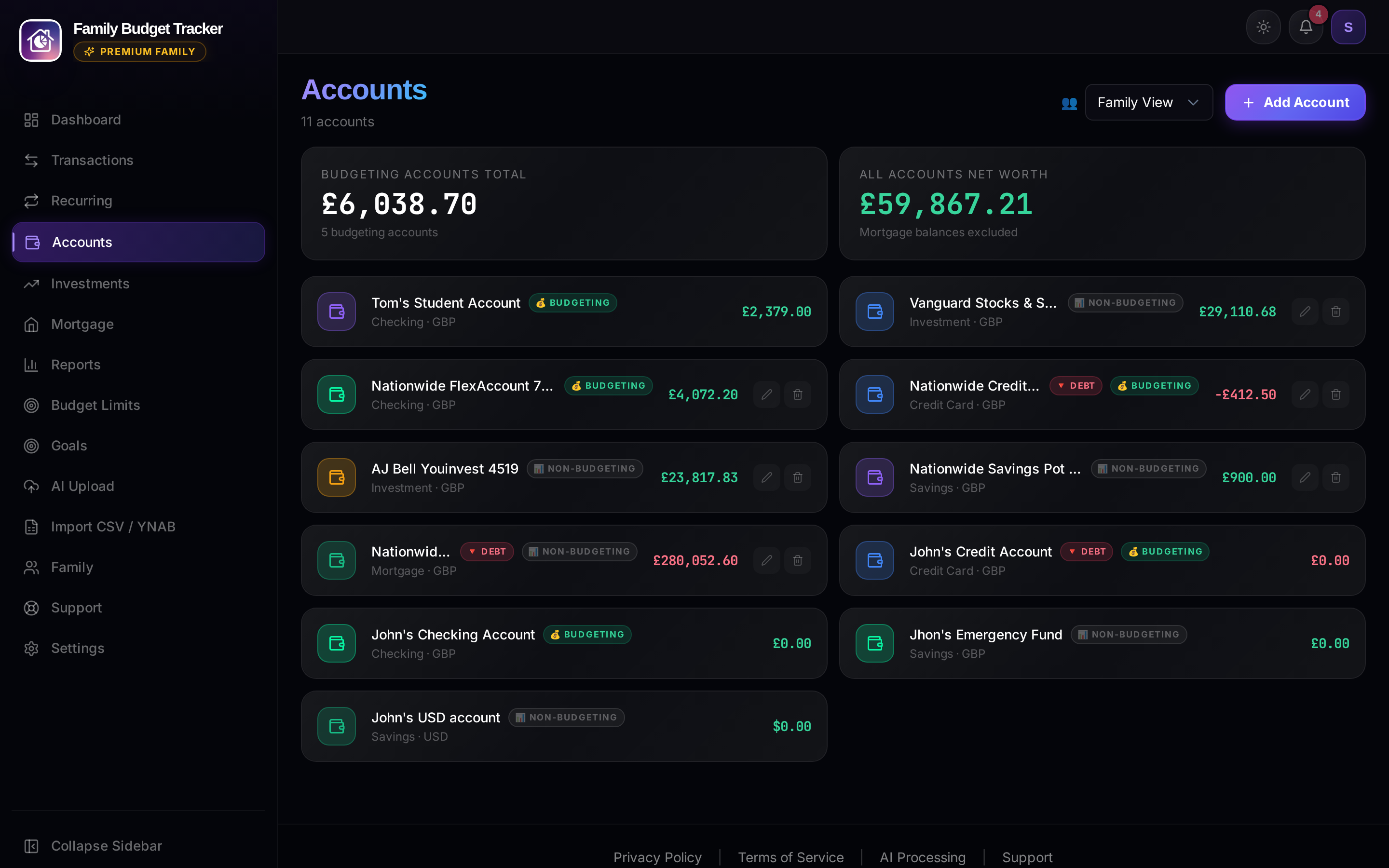
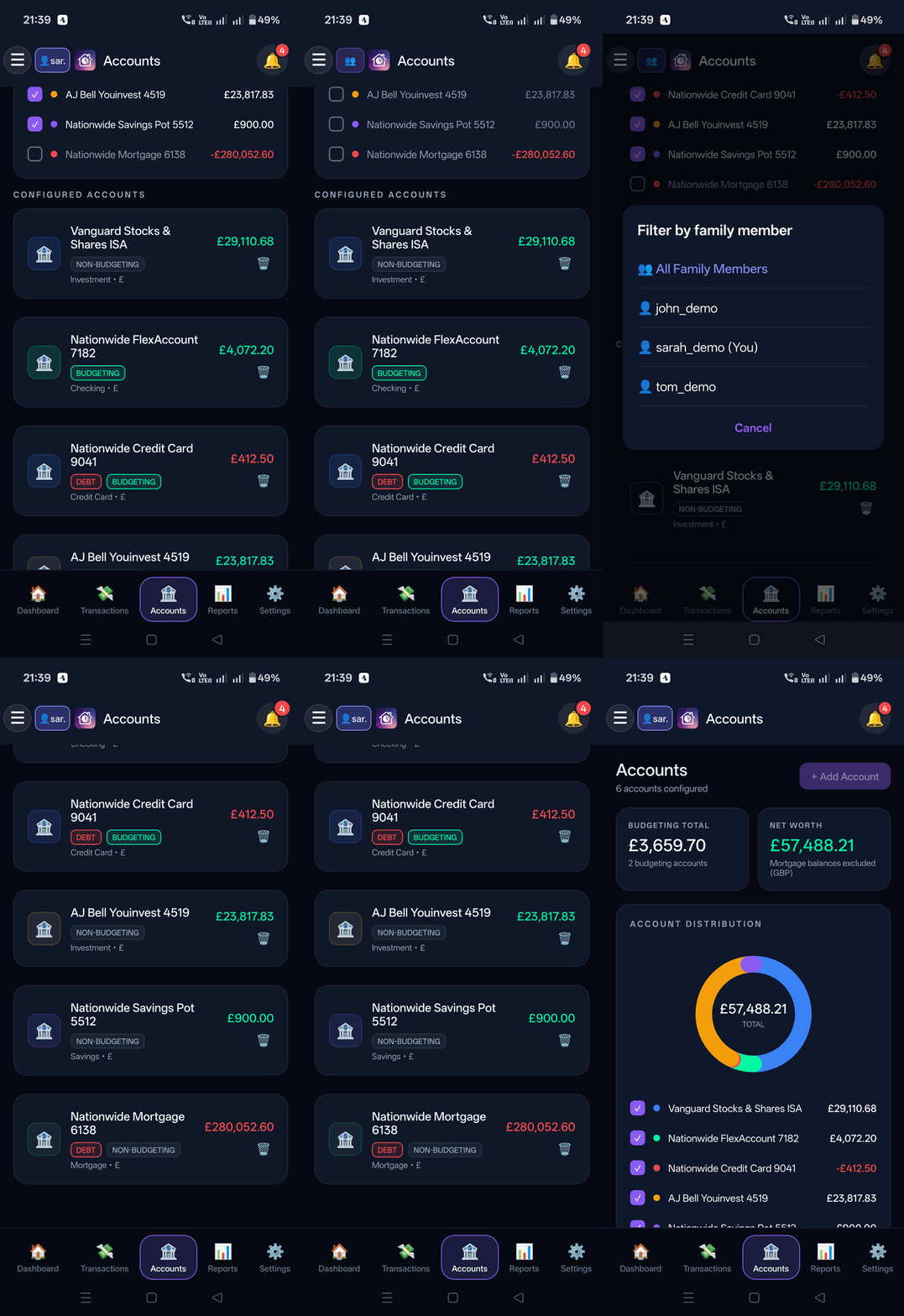
3. Multi-Account Hub
Centralized view of Checking, Savings, Credit Cards, Mortgages, and Investment holdings.
What It Does
- Manages liquid bank accounts alongside non-budgeting assets (Mortgages, ISAs, SIPPs).
- Displays running balances, ownership badges, and multi-currency conversions.
- Collapsible account groups for clear liquid vs non-liquid separation.
How It Works Under the Hood
Non-budgeting accounts (such as mortgages and long-term investments) are isolated so their large balances do not distort the liquid daily Safe to Spend formula.
How to Configure & Use
- Click/tap + Add Account to create a new account.
- Toggle "Include in Budgeting" depending on whether the funds represent daily spending cash.
- Assign account ownership to a specific family member or the shared household.
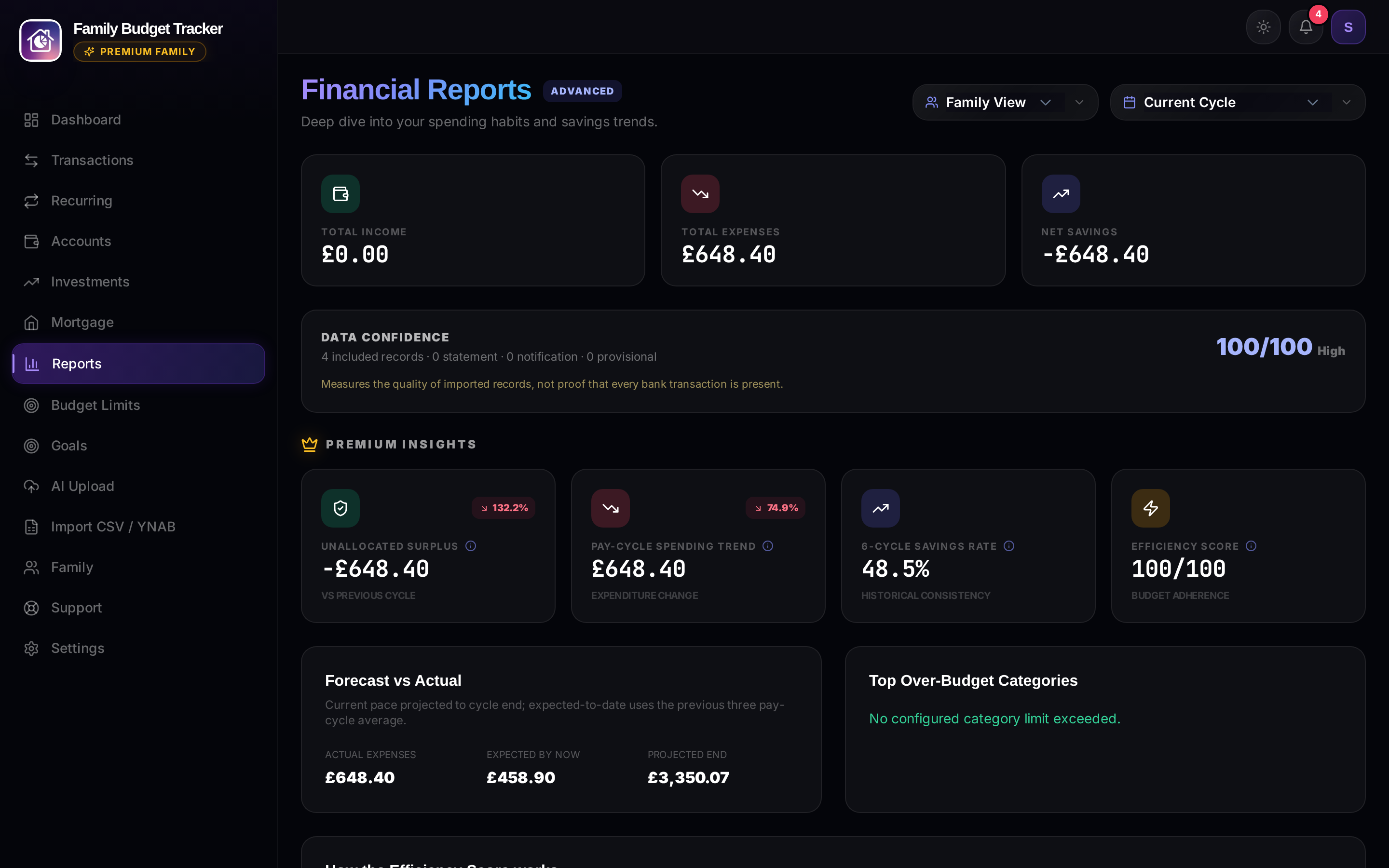
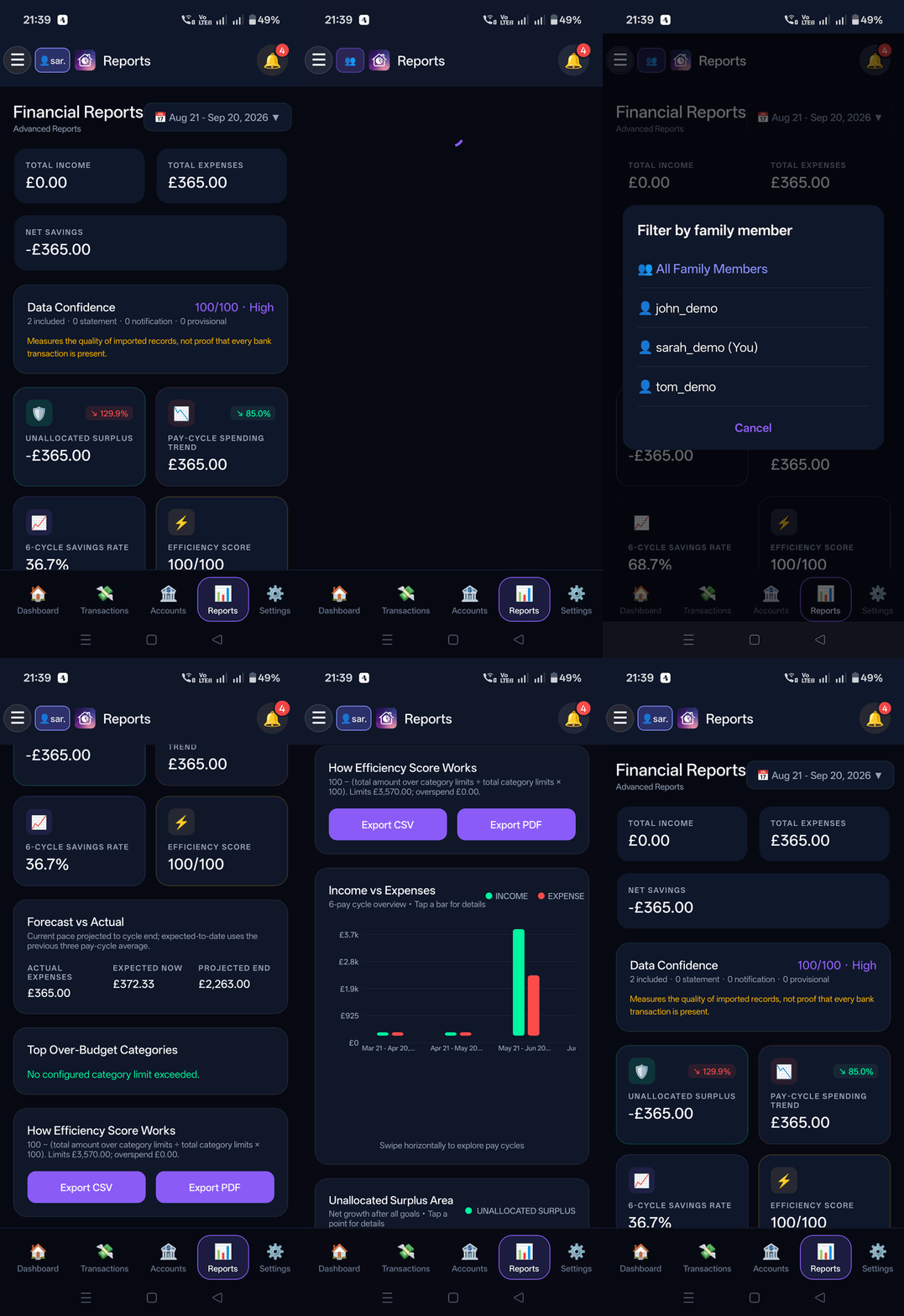
4. Financial Reports & Analytics
Visual cash flow analytics, category distribution charts, and burn velocity comparisons.
What It Does
- Income vs Expense comparative cash flow analysis.
- Interactive category breakdown charts revealing where household money goes.
- Pay cycle comparisons showing month-over-month savings velocity.
How It Works Under the Hood
Web renders responsive SVG charts while Mobile delivers hardware-accelerated interactive charts. Aggregations calculate on the fly across selected date intervals without UI lag.
How to Configure & Use
- Select a pay cycle or custom date interval from the top period dropdown.
- Click or tap on individual category bars to drill down into itemized historical expenses.
5. Settings, Security & Biometrics
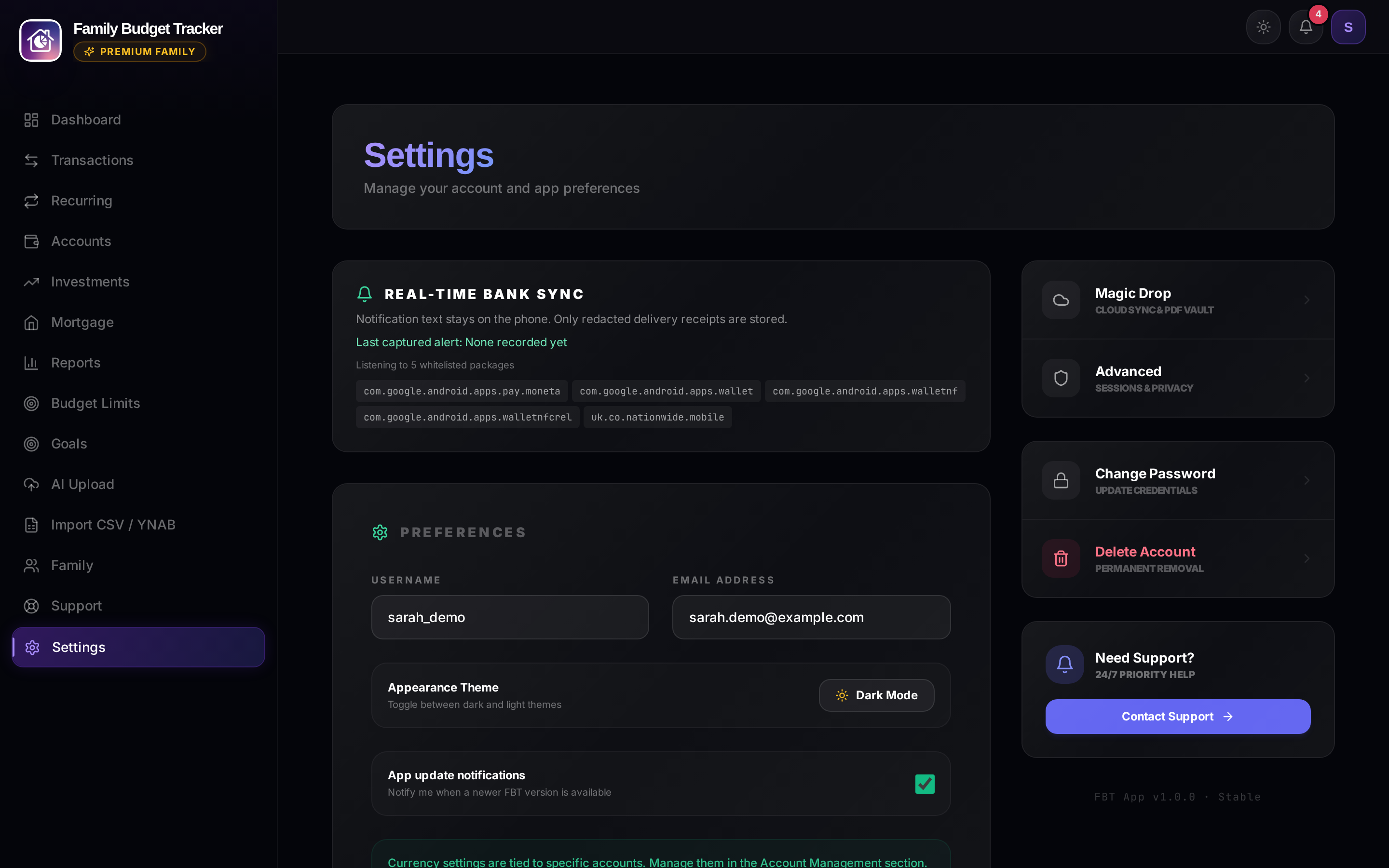
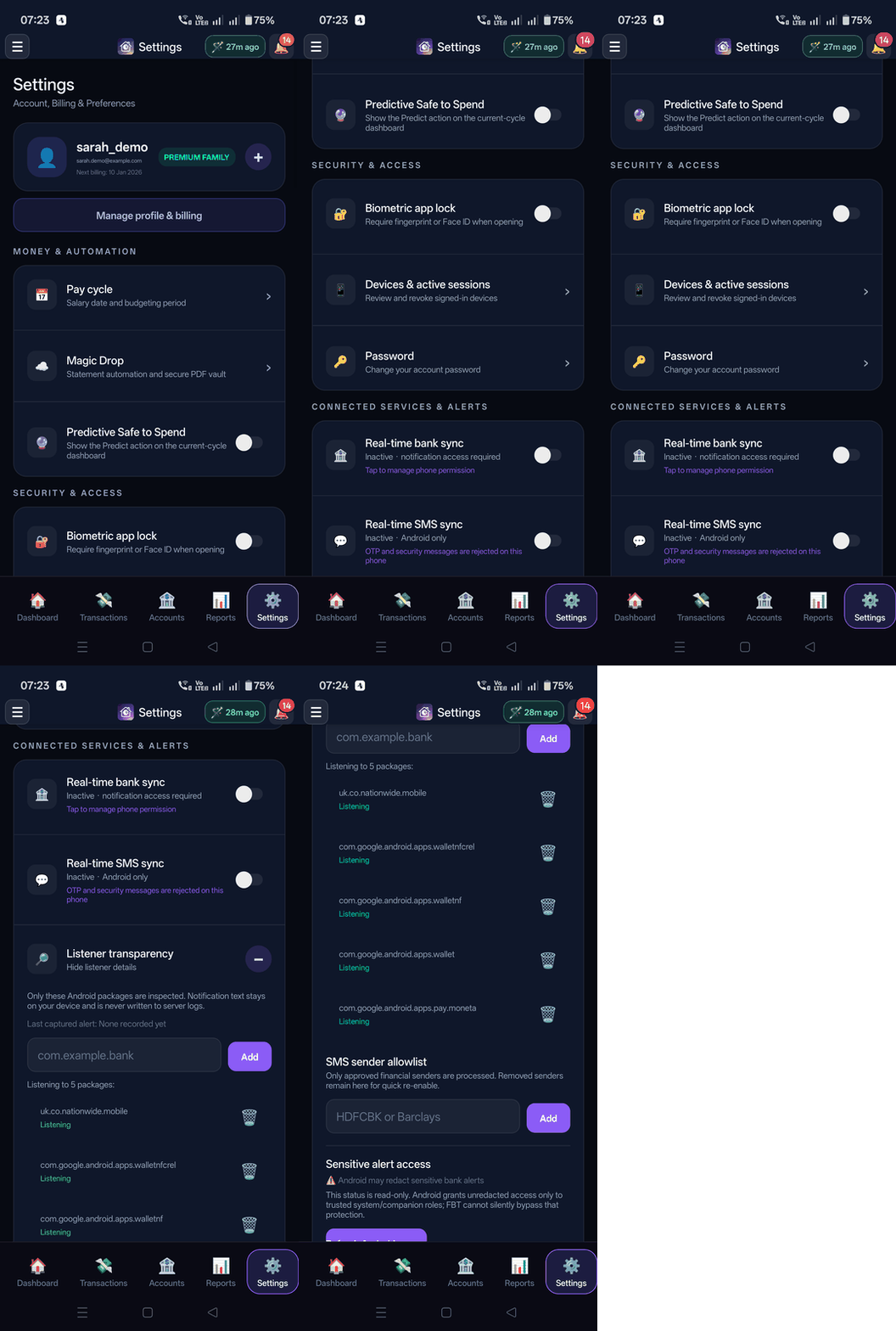
Biometric security app lock, bank notification listener manager, and system preferences.
What It Does
- Native fingerprint / Face ID biometric app lock enforced on launch and resume.
- Real-Time Bank Sync: Instant transaction ingestion from bank push notifications and Google Wallet.
- Listener Transparency: Zero-server-logging privacy architecture with on-device allowlisting and live audit trail.
- Pay cycle frequency configuration, currency selector, and audit export.
How It Works Under the Hood
Uses expo-local-authentication for biometrics and a native Android NotificationListenerService. Notification text is parsed 100% in local memory and never transmitted to server logs or remote databases.
How to Configure & Use
- Toggle "Biometric Lock" on mobile to require fingerprint/face scan.
- Under Connected Services & Alerts, toggle "Real-time bank sync" and grant notification access.
- Expand "Listener transparency" to inspect active package allowlists, audit the last captured alert, or add custom bank package IDs (e.g.
com.yourbank.app).
6. Smart Mortgage Hub & Rate Solver
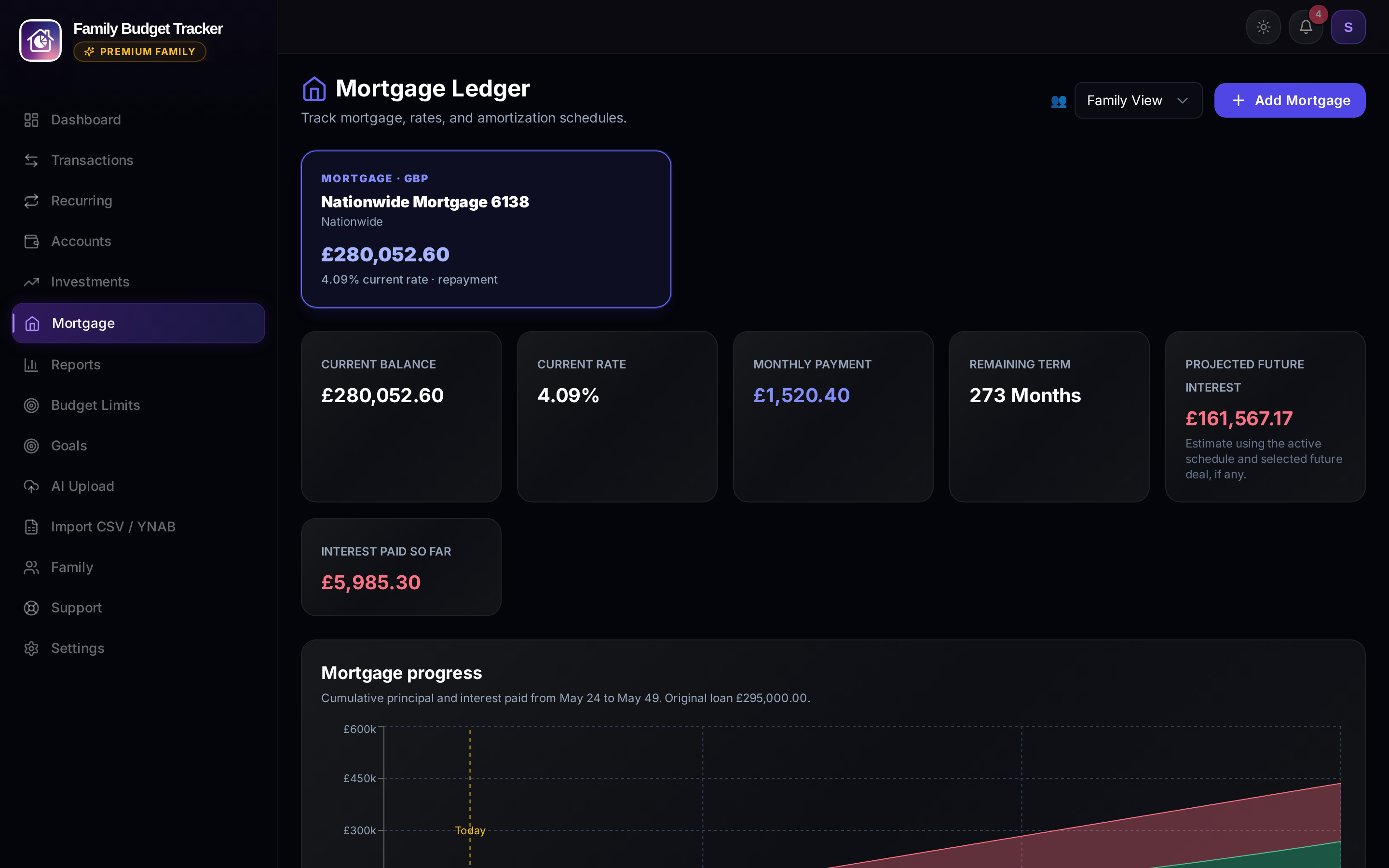
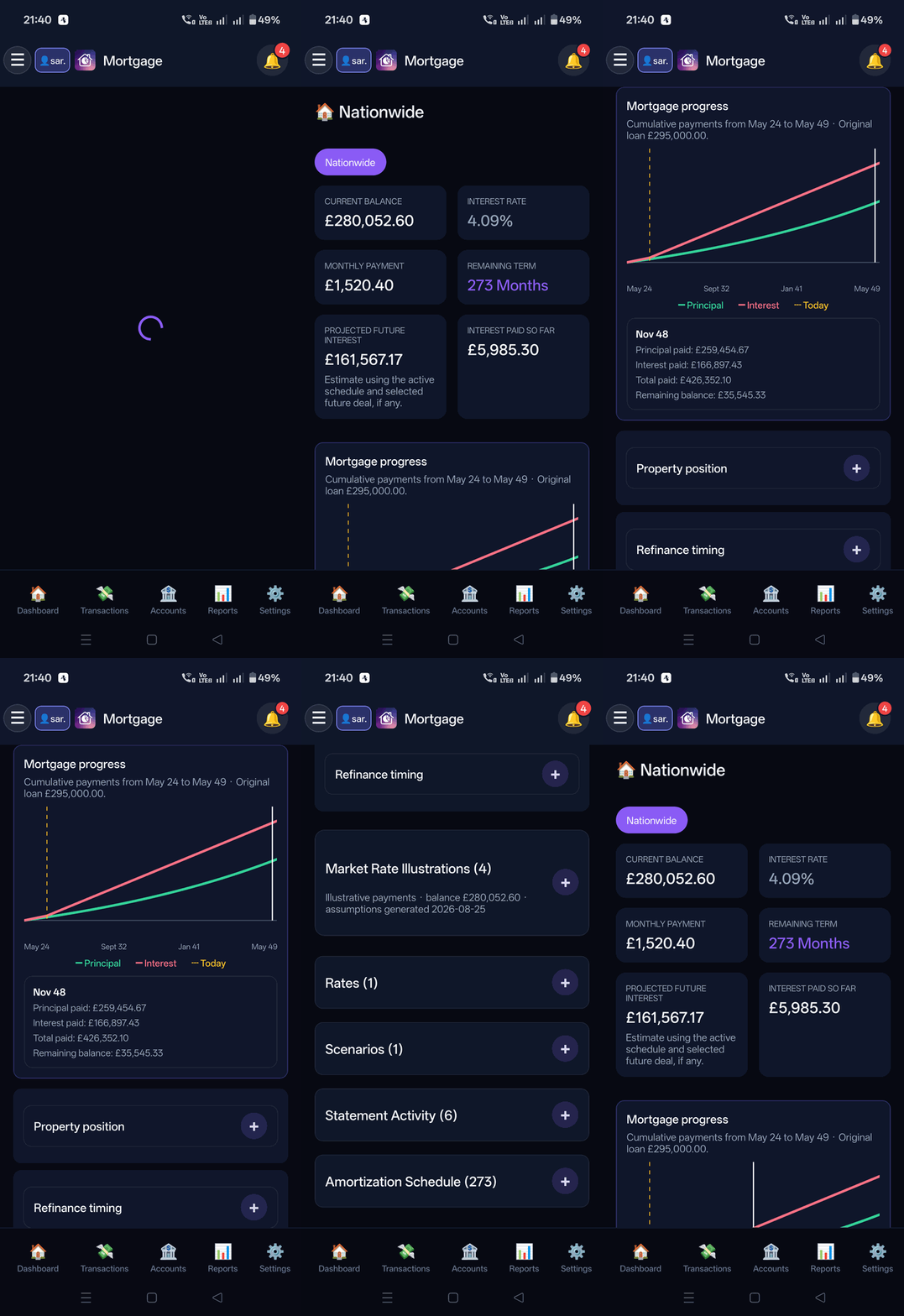
Interactive loan amortization curve, itemized payment ledger, and reverse-engineering rate solver.
What It Does
- Interactive payoff timeline with touchable amortization points.
- Statement Activities displaying principal components, interest charges, and running balances.
- In-app live remortgage deal discovery and overpayment simulator.
How It Works Under the Hood
When monthly debits adjust (e.g. rate changes), a binary search algorithm reverse-engineers the exact annual interest rate from (Balance, Remaining Term, Monthly Payment).
How to Configure & Use
- Open Mortgage from the side menu.
- Expand Statement Activities to inspect itemized payment rows.
- Tap along the curve to simulate payoff acceleration and interest savings.
7. Investment Portfolio & Ticker Sync
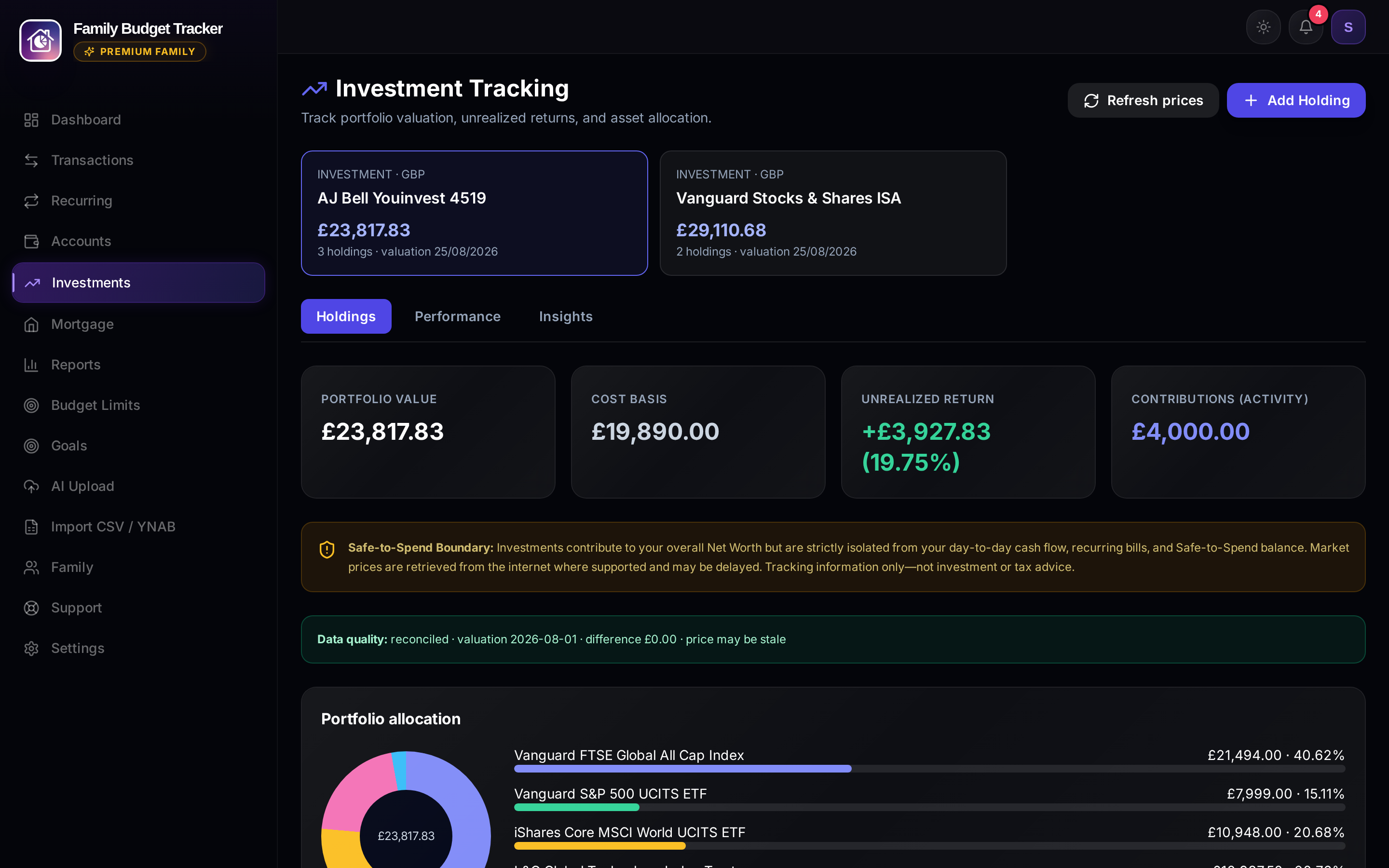
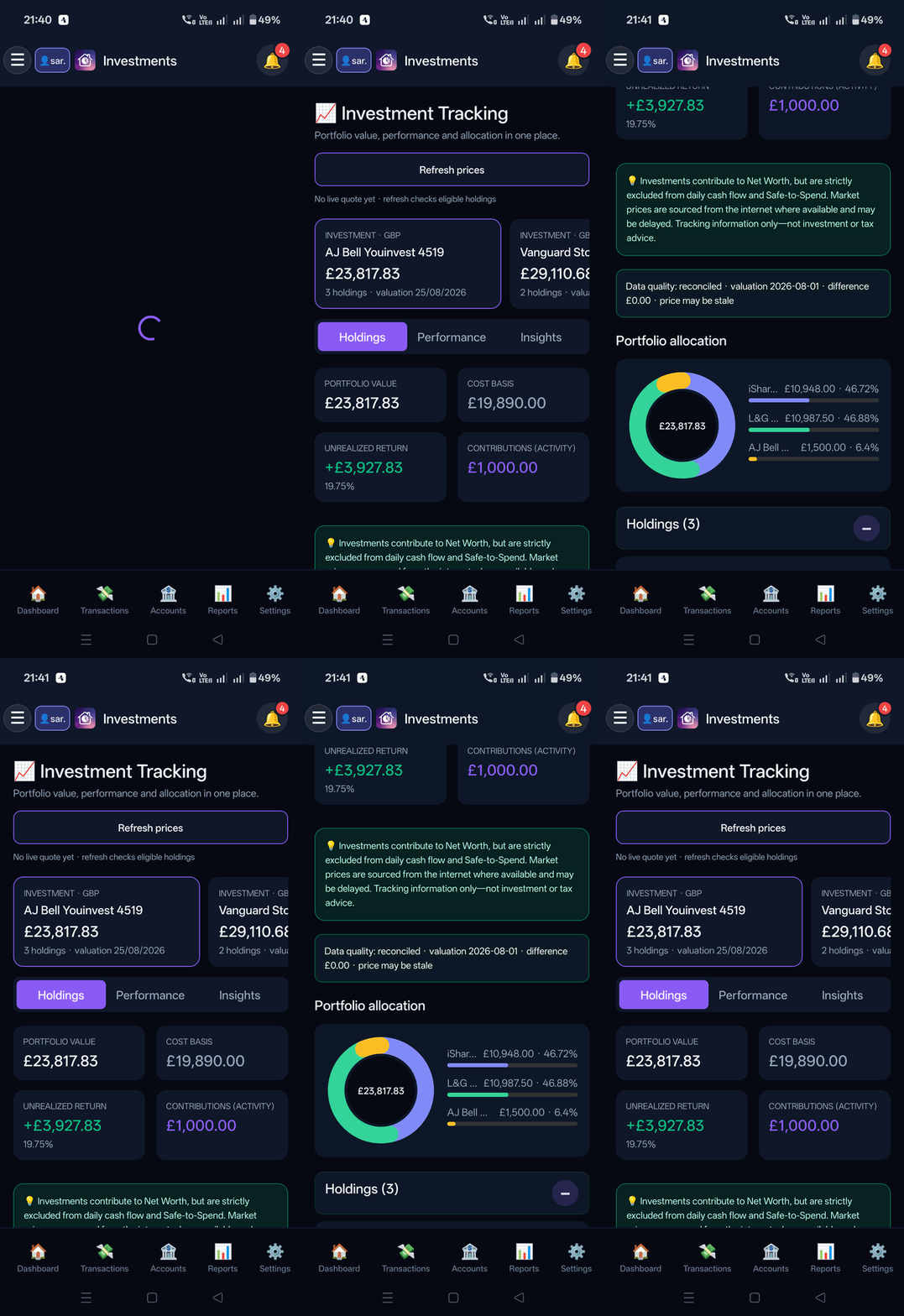
Multi-broker portfolio tracking across Vanguard, AJ Bell, and international investment platforms with automated market pricing.
What It Does
- Holdings Tab: Individual funds, shares, unit costs, live market prices, and current valuations.
- Performance Tab: Interactive quarterly portfolio valuation growth curve and time-weighted return tracking.
- Insights Tab: Asset class distribution (Equities, Bonds, Cash) and geographic market exposure.
Multi-Currency Multiples & Valuation Rationale
The investment engine applies sophisticated valuation multipliers to ensure 100% precision across multi-currency and multi-denomination assets:
- Minor-to-Major Currency Scaling Multiples (Pence to Pounds / GBX → GBP): Many UK equities, funds, and investment trusts trade and quote on the London Stock Exchange in pence (
GBp/GBX) rather than pounds. The pricing engine automatically detects pence denominations and applies a decimal scaling multiple of÷ 100(0.01x).
Rationale: Without the decimal scaling multiple, a holding of 1,000 units in a fund quoted at 450 GBp (£4.50) would naively compute to £450,000 instead of £4,500, creating an erroneous 100× net worth distortion. - Cross-Currency FX Multipliers: For global holdings denominated in foreign currencies (e.g. US equities in USD, European index trackers in EUR), real-time foreign exchange conversion multiples convert asset market values into your family's base currency.
- Fractional Share Unit Multiples: Precise fractional unit quantities are multiplied against normalized unit quotes to calculate exact true Net Asset Value (NAV) without rounding errors.
How It Works Under the Hood
Automated real-time market pricing engines fetch live quotes and FX conversion rates in the background, automatically normalizing currency multiples and generating quarterly valuation snapshots from historical statement activity.
How to Configure & Use
- Open Investments from the navigation menu.
- Switch between Holdings, Performance, and Insights tabs.
- Click or tap "Refresh Live Prices" to update valuations and execute real-time multi-currency normalization.
8. Physical vs Virtual Savings Goals
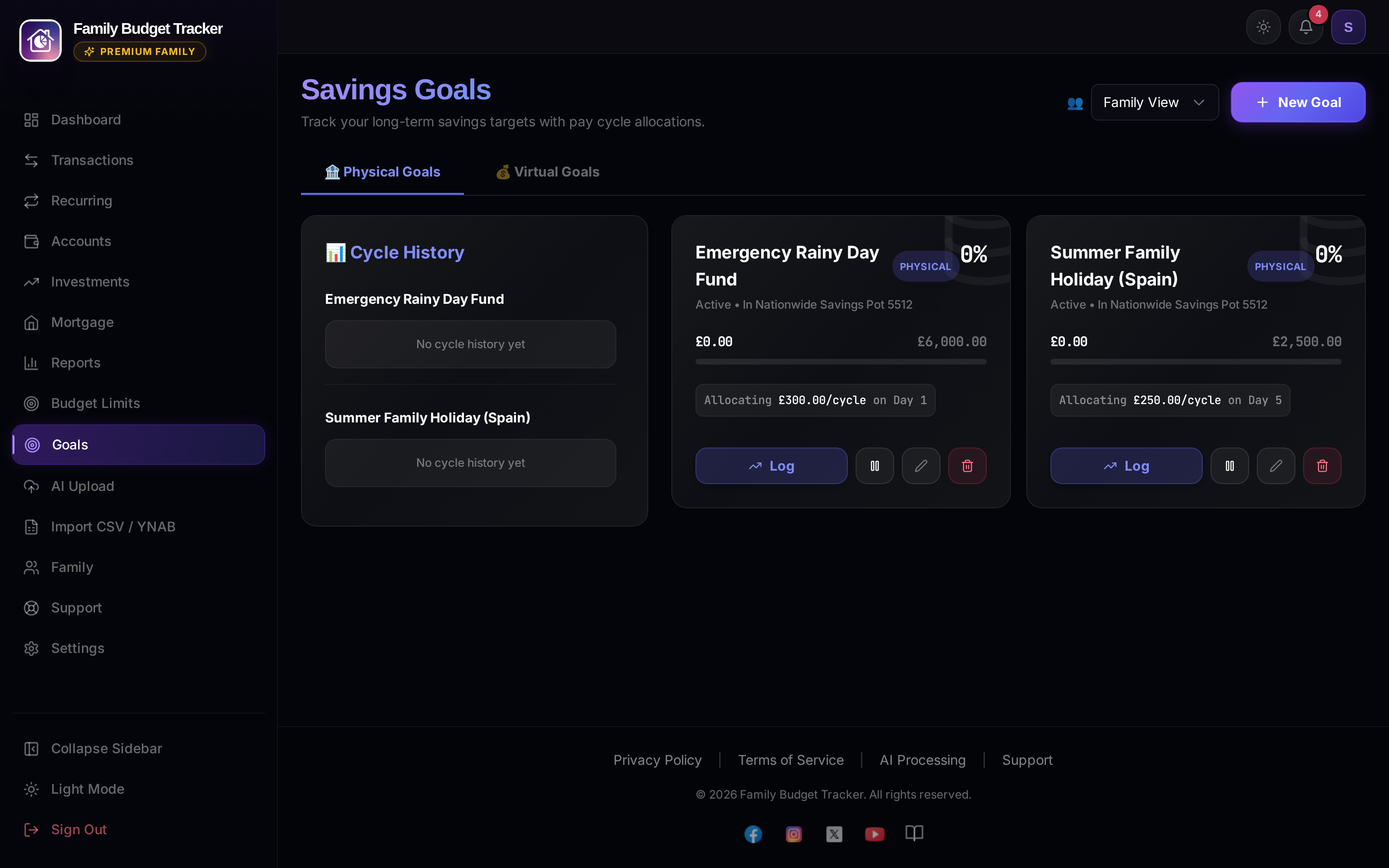
Dual-tier goal architecture distinguishing between bank-locked funds and budget envelopes.
What It Does
- Physical Goals: Locked directly to real savings bank account balances (Emergency Fund, House Deposit).
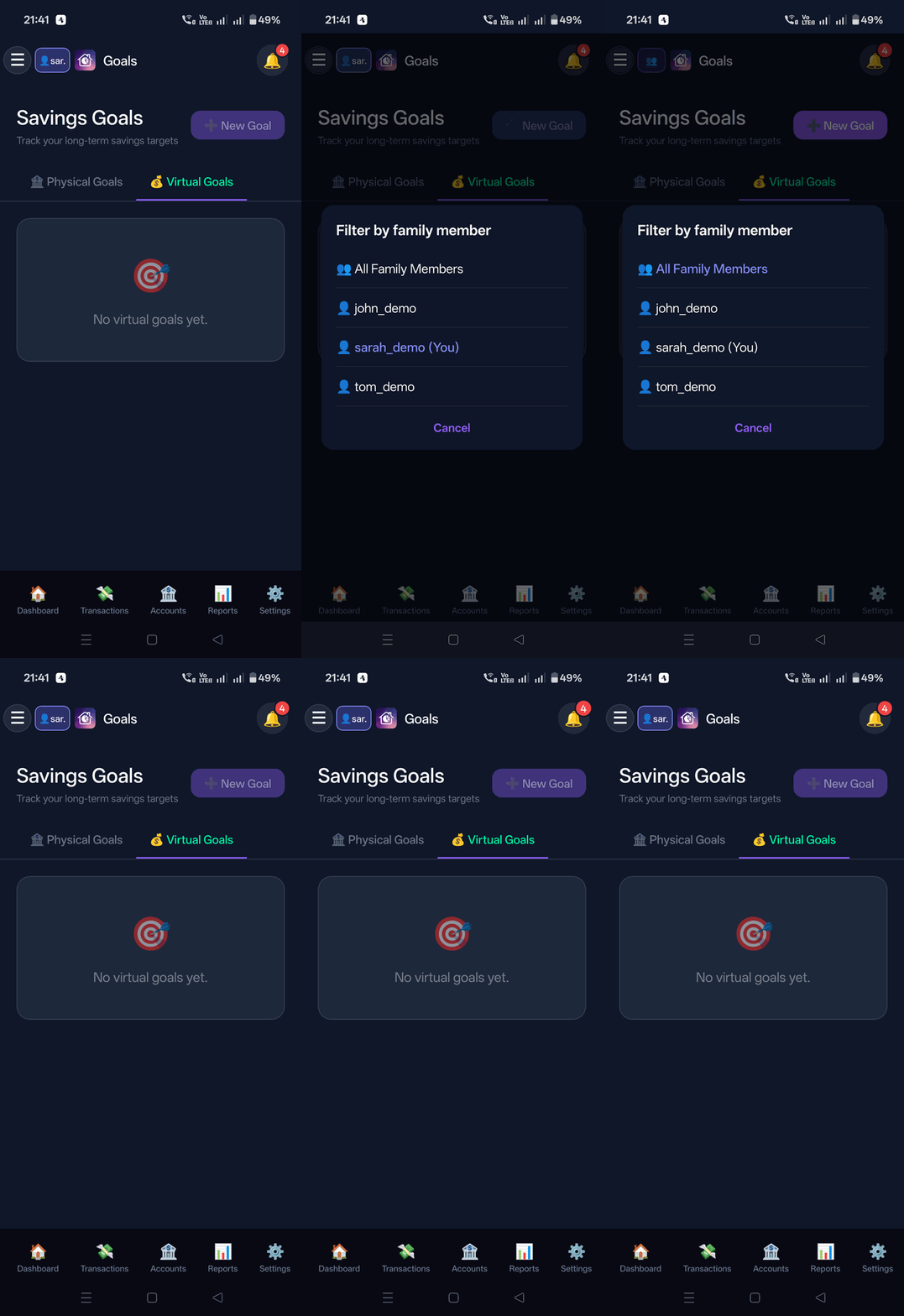
- Virtual Goals: Category budget envelopes inside general checking accounts.
- Visual progress bars, target dates, and monthly savings calculators.
How It Works Under the Hood
Physical goal reserves are automatically deducted from the Safe to Spend pool so emergency reserves can never be accidentally spent.
How to Configure & Use
- Open Goals from the menu.
- Click/tap + Create Goal, choose Physical or Virtual, and set your target amount and date.
9. Category Budget Limits
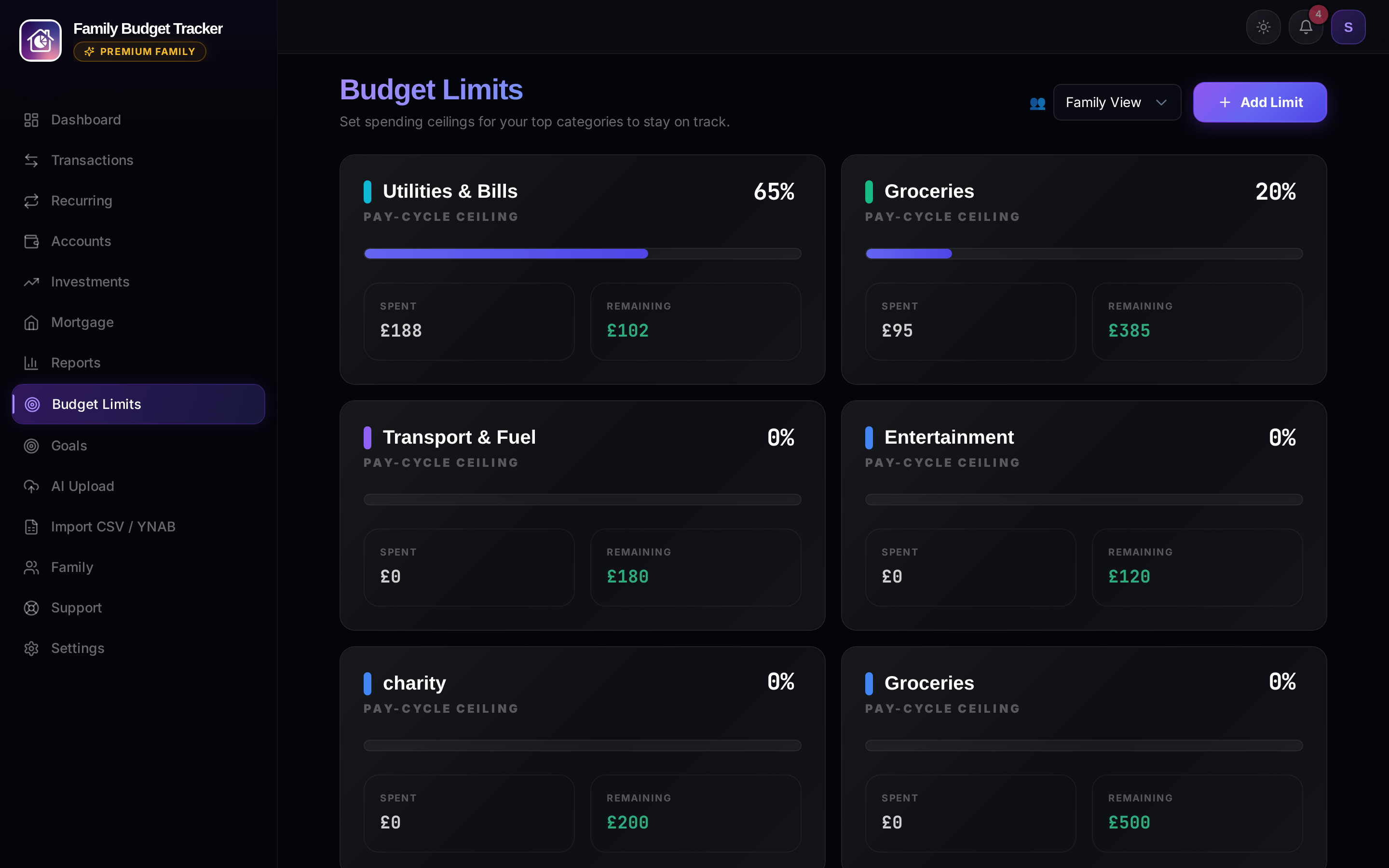
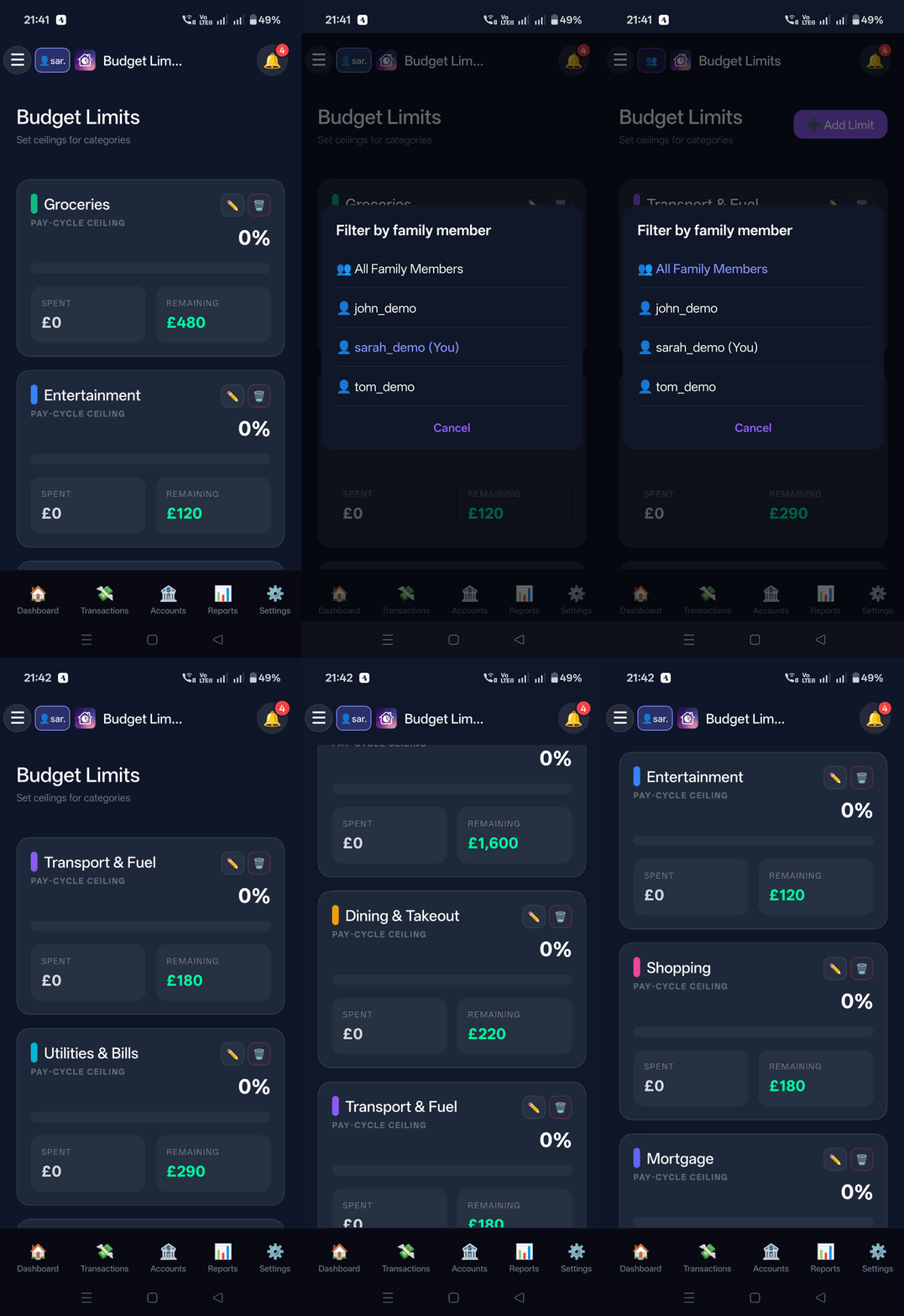
Category-specific spending caps and burn meters for the active pay cycle.
What It Does
- Sets hard or soft spending limits per category (Groceries, Dining, Entertainment, Shopping).
- Progress meters with color-coded warning thresholds when approaching limits.
How to Configure & Use
- Open Budget Limits from the menu.
- Adjust monthly limits per category using direct amount input or sliders.
10. Recurring Payments & Subscriptions
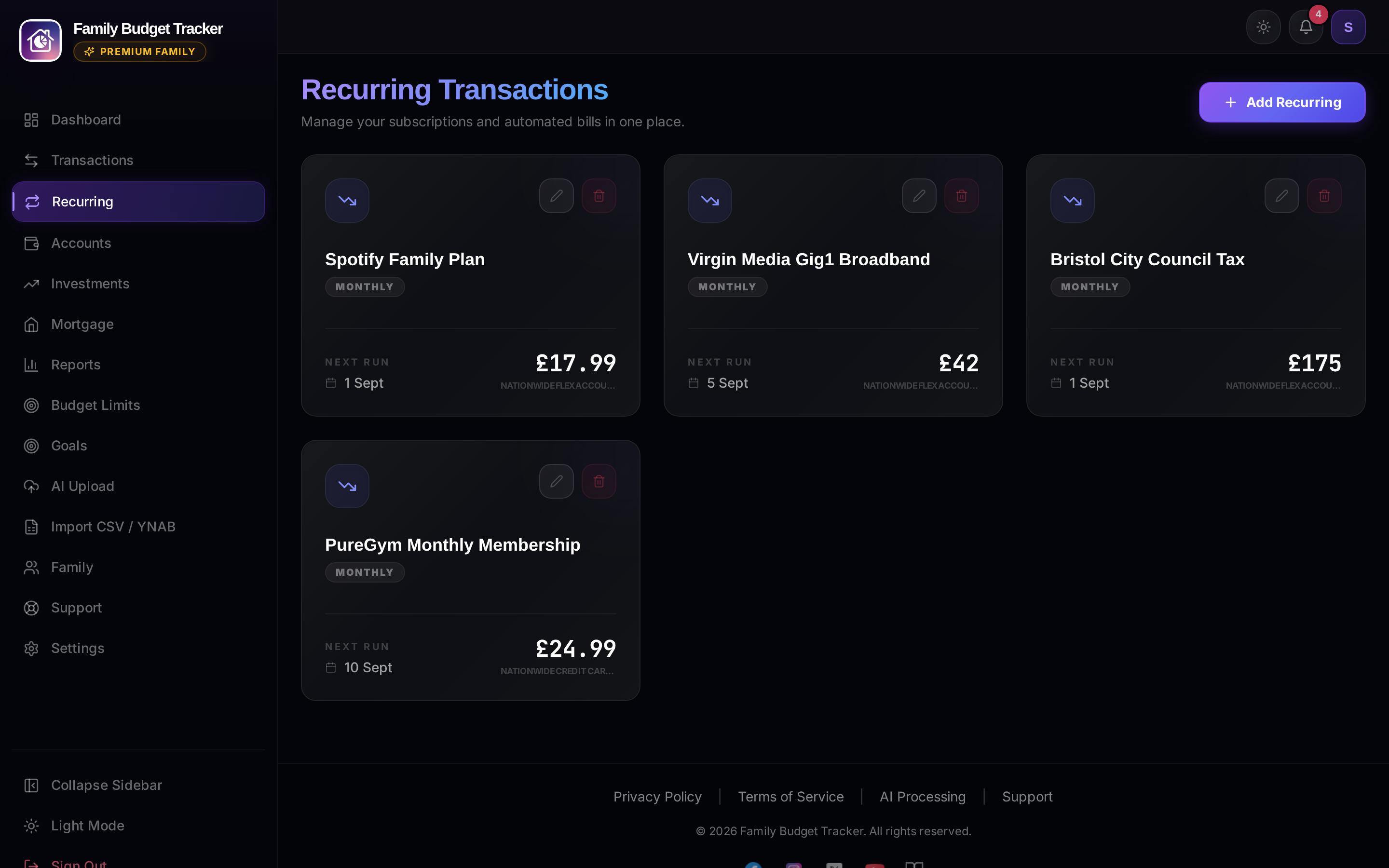
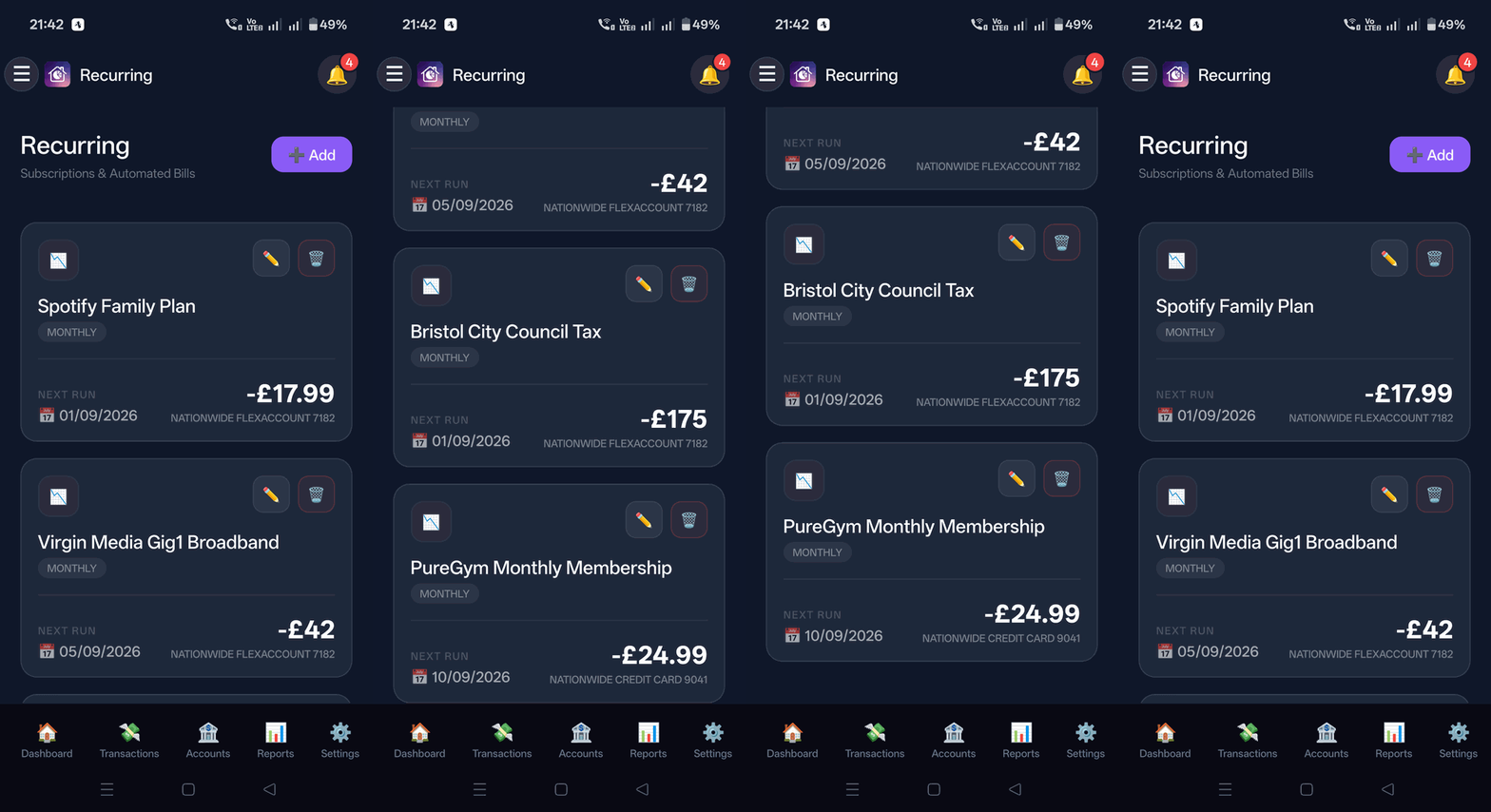
Subscription and bill manager with predictive auto-deduction math.
What It Does
- Tracks regular subscriptions, utilities, council tax, gym, and broadband contracts.
- Displays next billing date, monthly cadence, payment account, and active status.
How It Works Under the Hood
Upcoming recurring bills within the active pay cycle are automatically reserved from Safe to Spend. When debits clear, bills are automatically marked as paid.
How to Configure & Use
- Open Recurring from the navigation menu.
- Add subscriptions with their billing cadence (Monthly, Annual, Weekly).
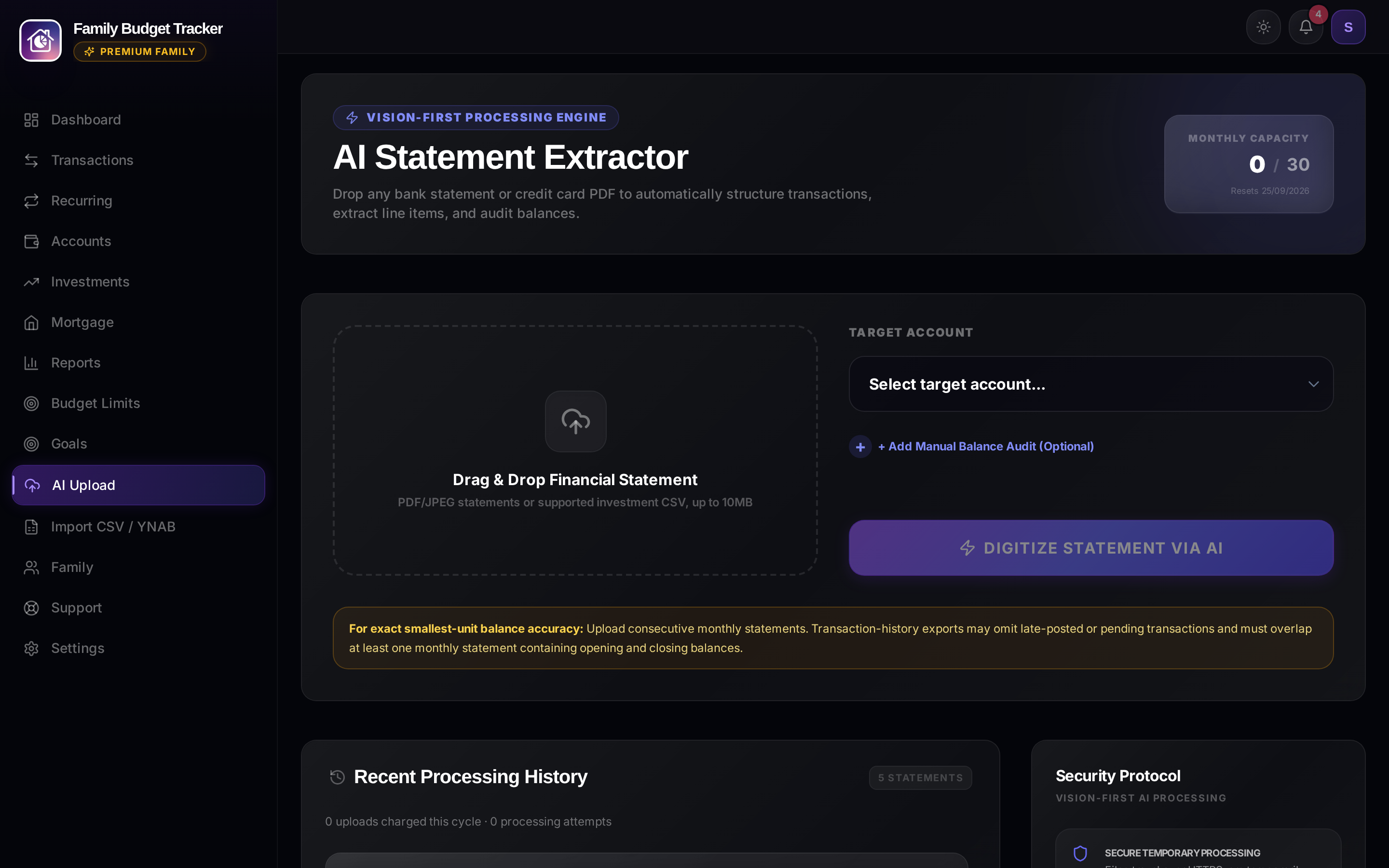
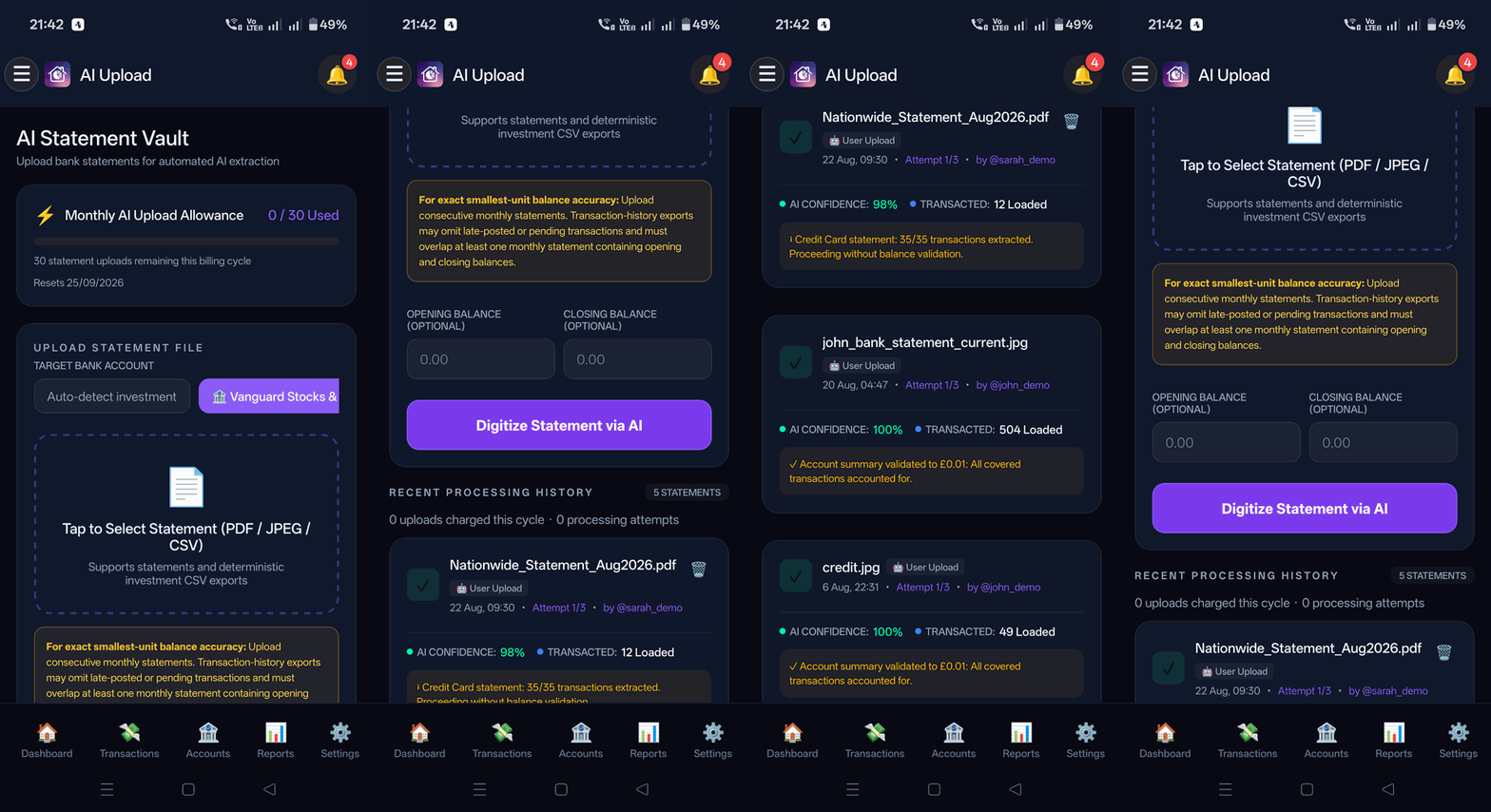
11. AI Statement Vault (Magic Drop)
Zero-bank-login PDF statement extraction with multimodal AI and privacy redaction.
What It Does
- Drag-and-drop dropzone for Bank, Credit, Mortgage, and Investment PDF statements.
- Extraction confidence scoring (98%+) with privacy redaction badges.
- Multi-account PDF detection (splits combined statements into isolated ledgers).
How to Configure & Use
- Open AI Upload from the menu.
- Drop any PDF statement or forward via Gmail Magic Drop automation.
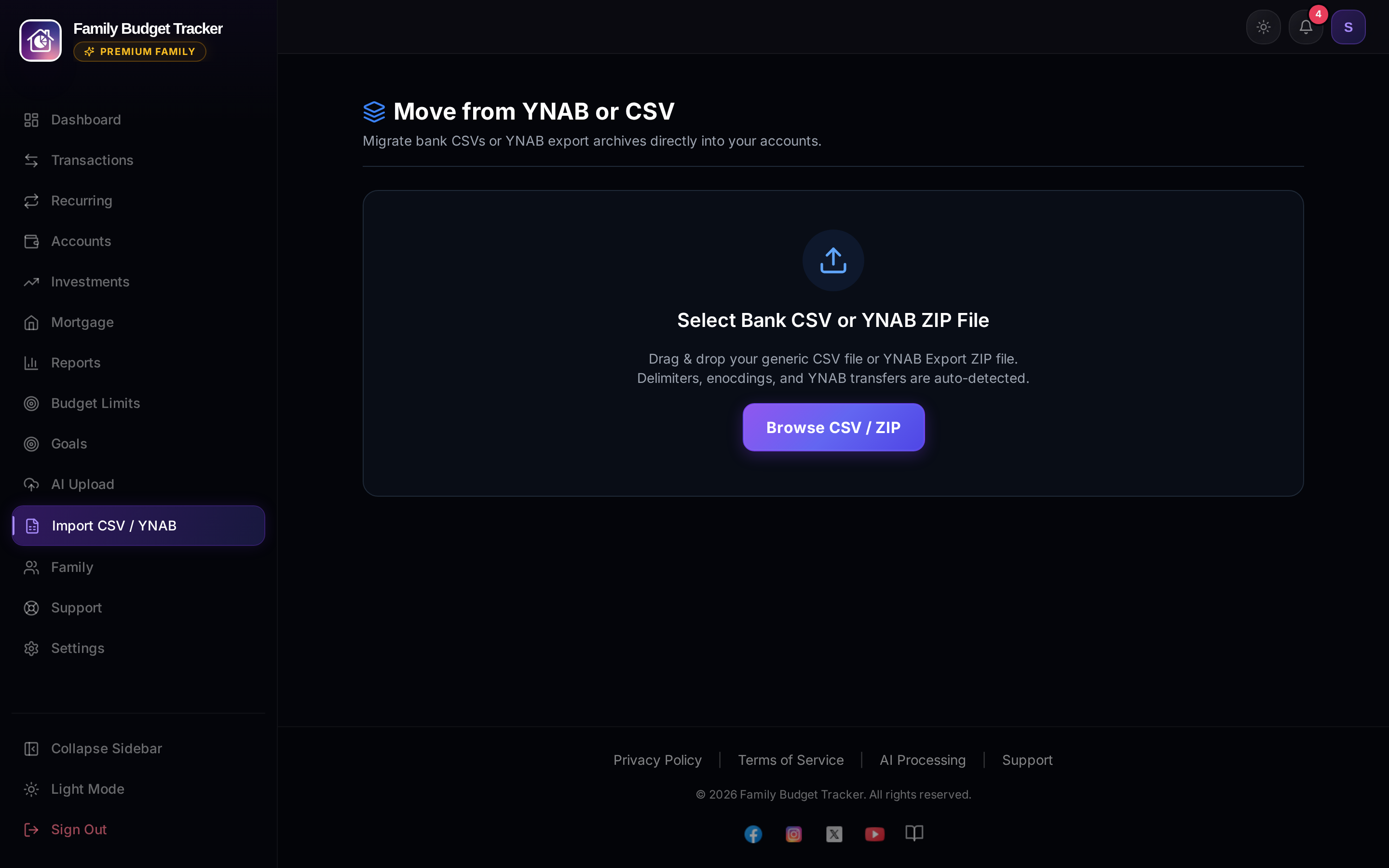
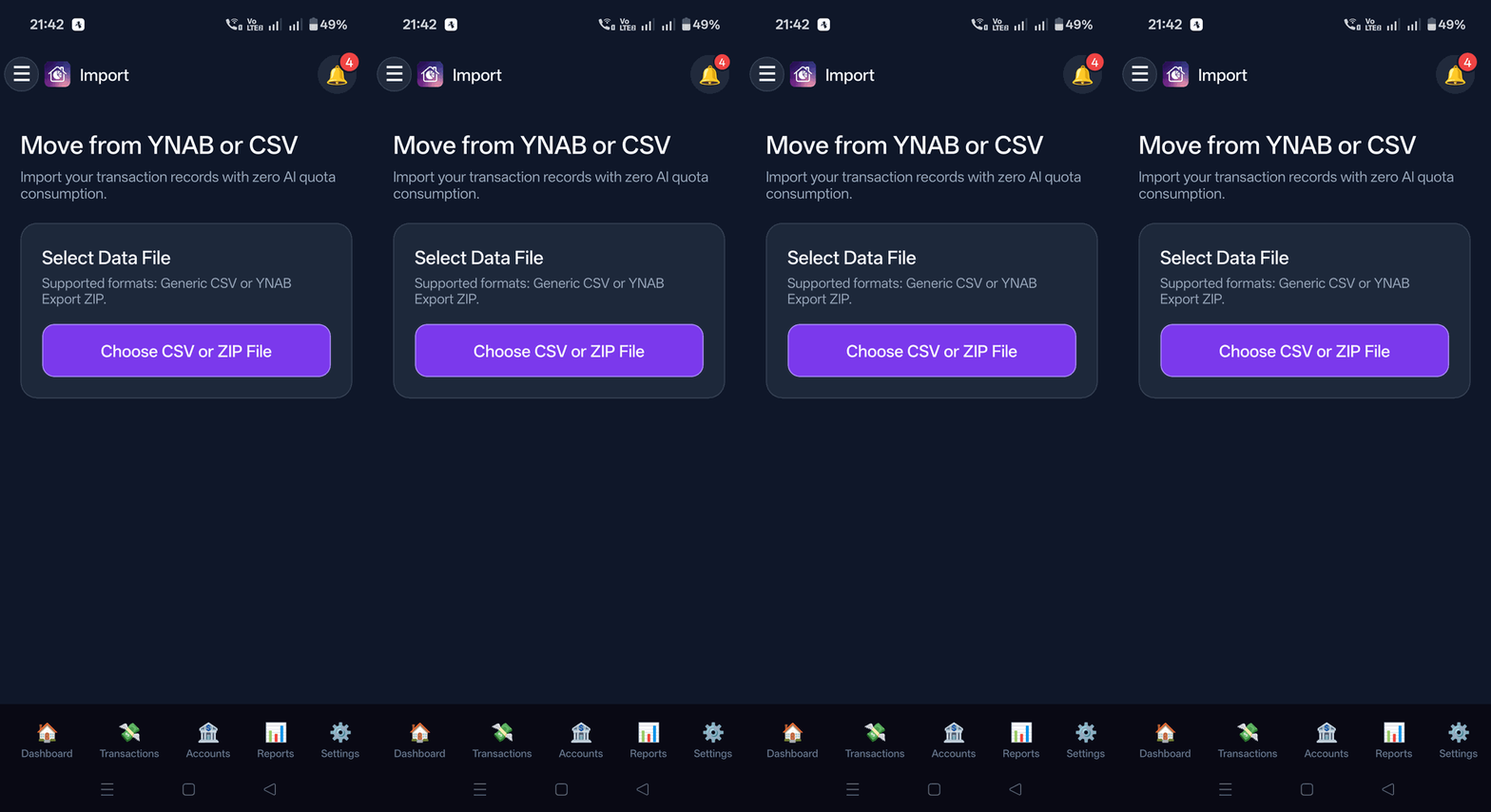
12. Data Import Engine (CSV & YNAB)
Fast migration tool for CSV spreadsheets and YNAB export archives.
What It Does
- Imports historical data from YNAB register archives or standard bank CSV files.
- Visual column mapping interface with automatic duplicate detection.
How to Configure & Use
- Open Import CSV / YNAB from the navigation menu.
- Upload your export file, verify column mappings, and import.
13. Family Collaboration & Member Roles
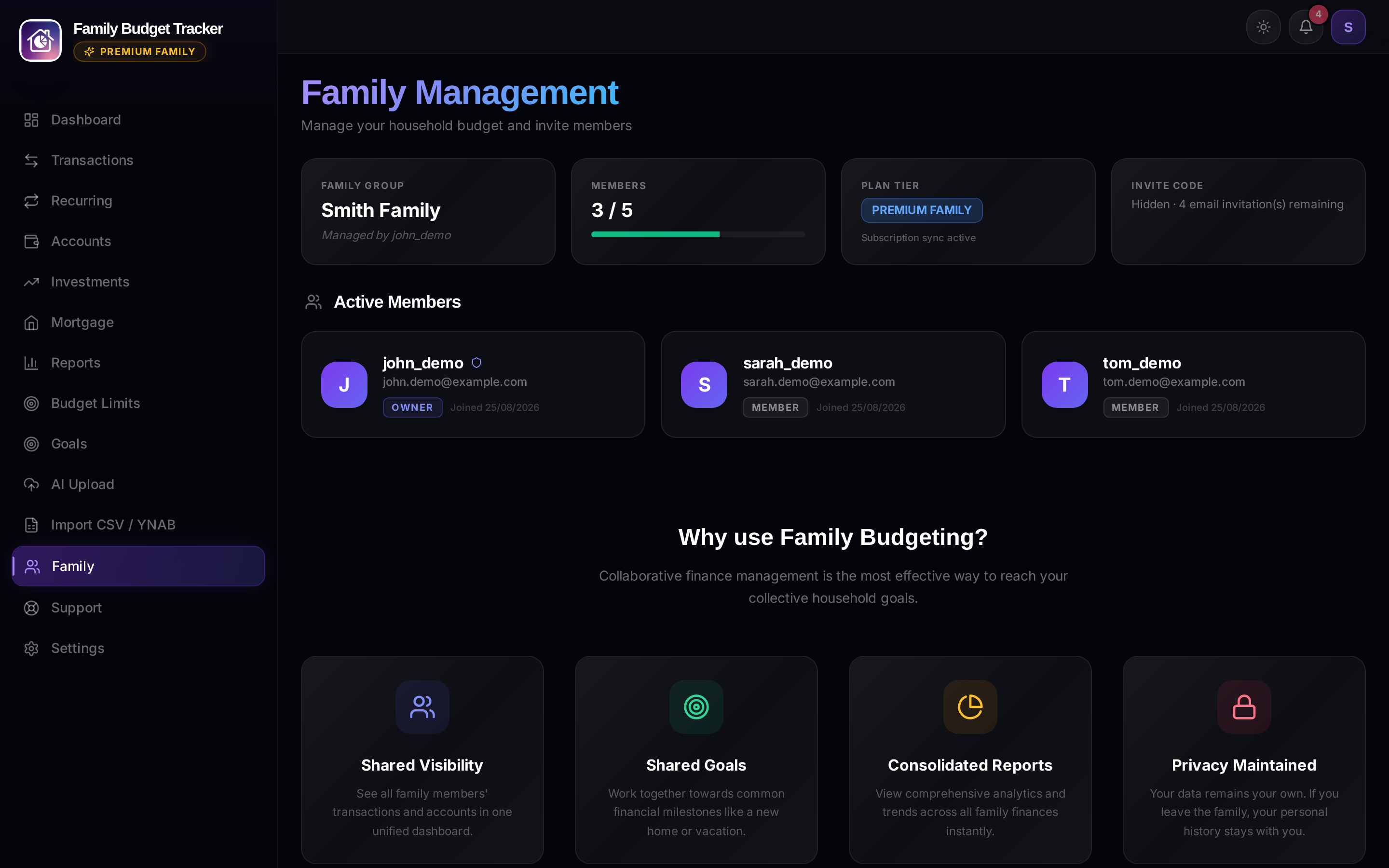
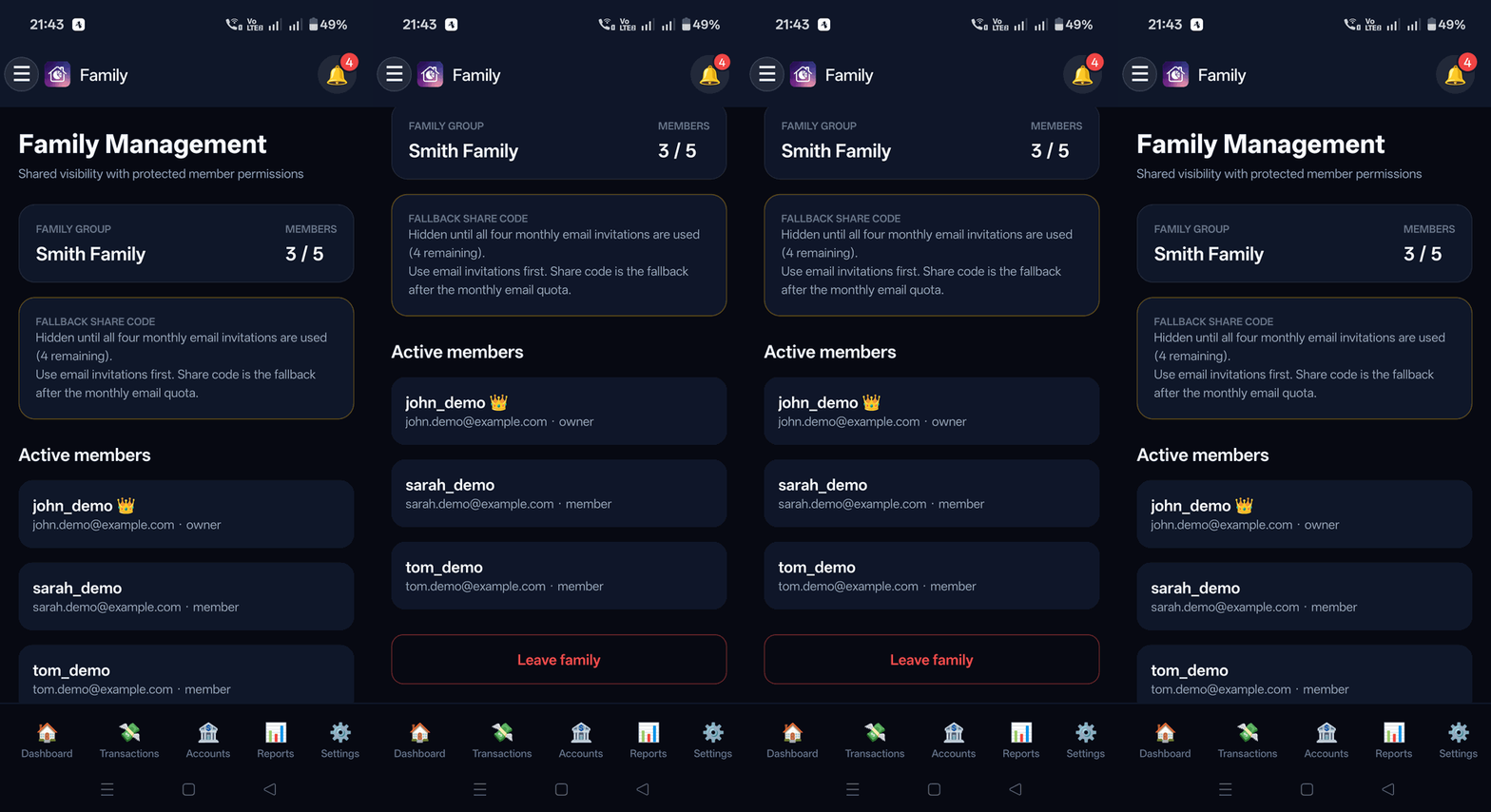
Shared household budgeting workspace supporting up to 5 family members.
What It Does
- Household member administration with Owner and Member role permissions.
- Generates family invite tokens for instant partner onboarding.
- Maintains private individual views alongside shared household totals.
How to Configure & Use
- Open Family Management from the navigation menu.
- Copy and share the generated Family Invite Code with family members.
14. In-App Notification Center
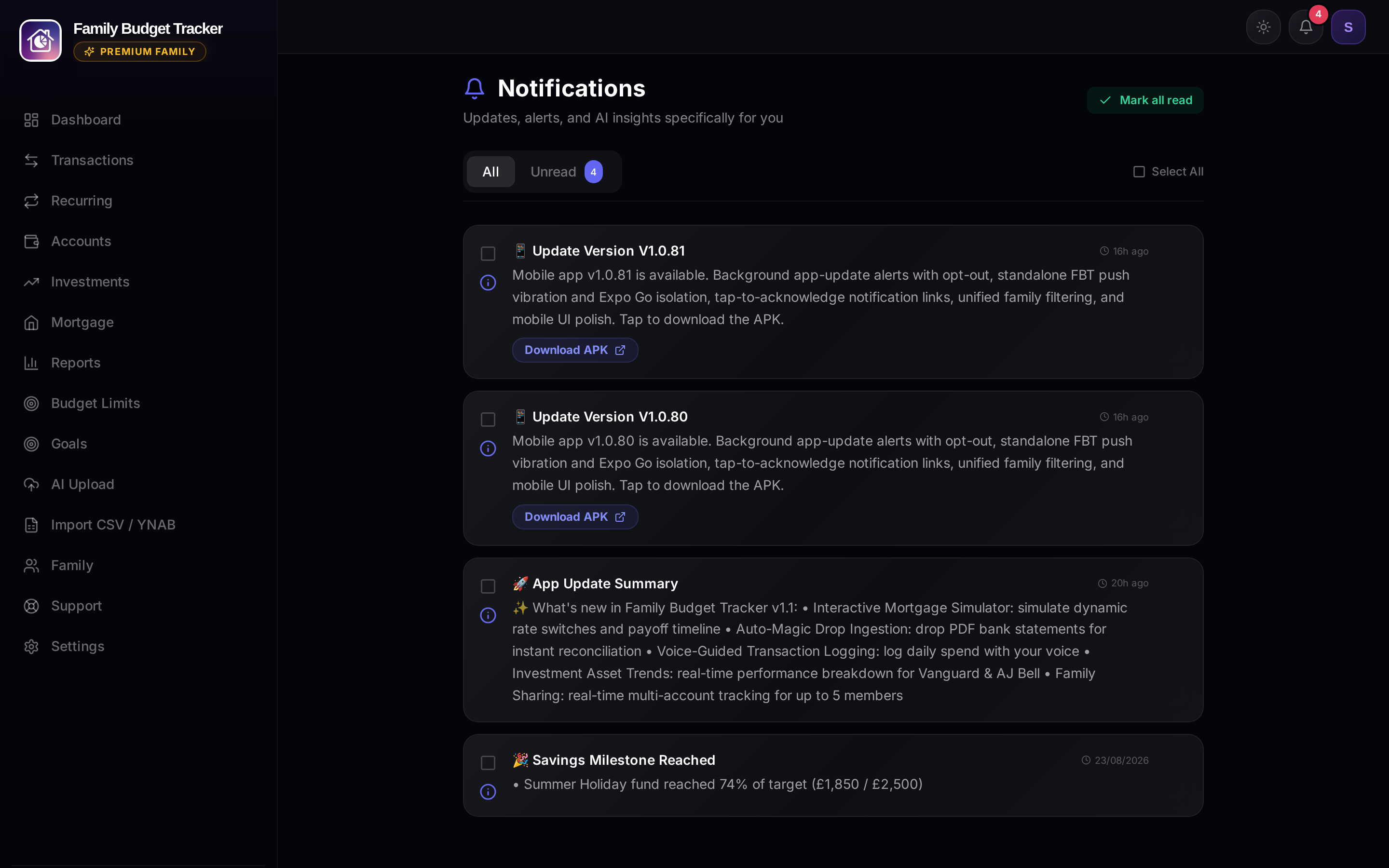
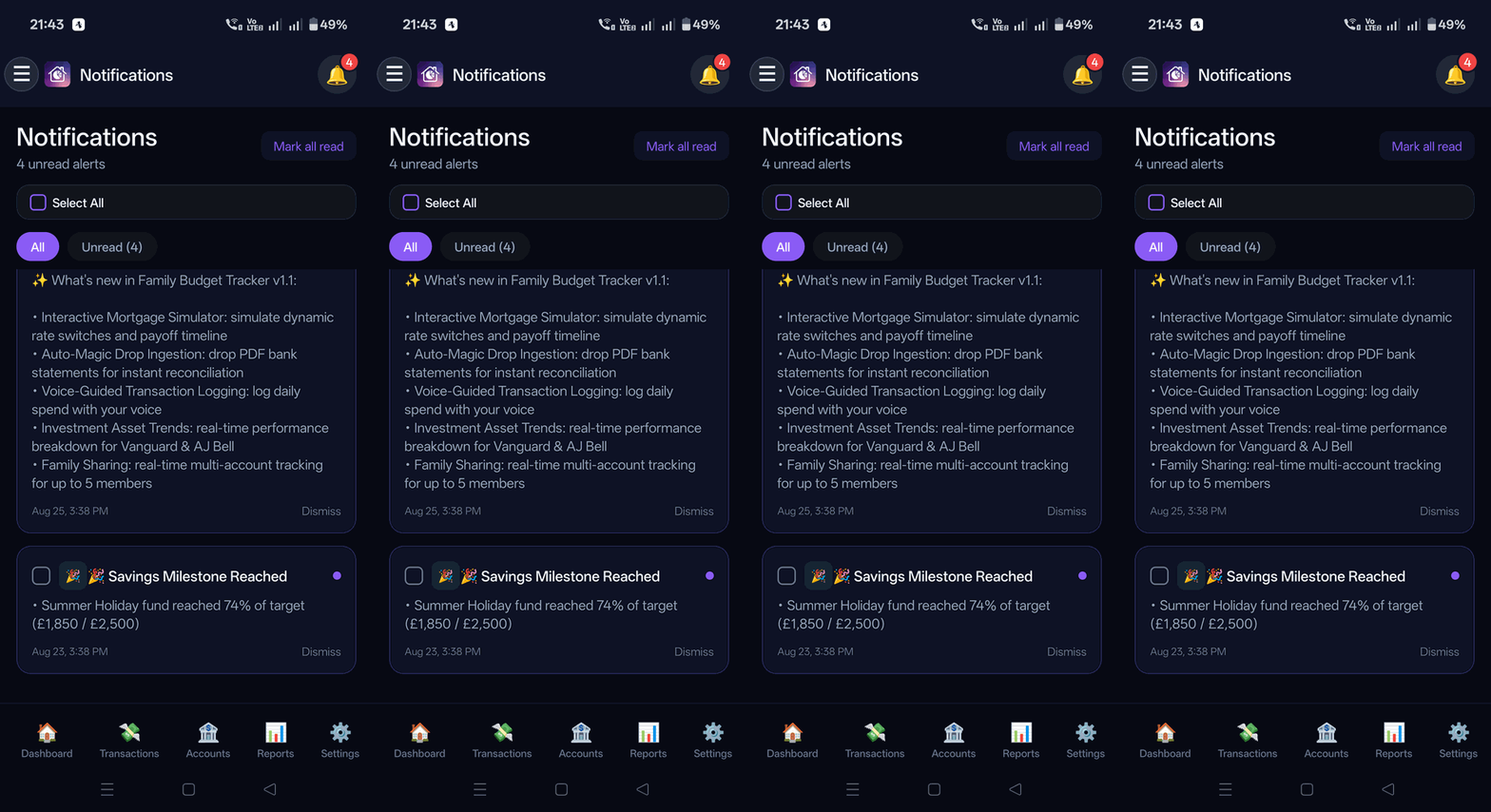
Clean notification feed for system updates, goal alerts, and rate changes.
What It Does
- In-app alert feed with unread badge counter on the header bell icon.
- Structured release notices, savings milestone notifications, and mortgage alerts.
How to Configure & Use
- Click or tap the Bell Icon (🔔) in the top-right header from any screen.
- Select "Mark All as Read" or tap individual notices to dismiss.