✨ Magic Drop & Gmail Automation Guide
Set up seamless, zero-effort bank statement ingestion. Simply drop PDF statements into Google Drive or forward bank emails to automatically parse, categorize, and commit transactions to your ledger.
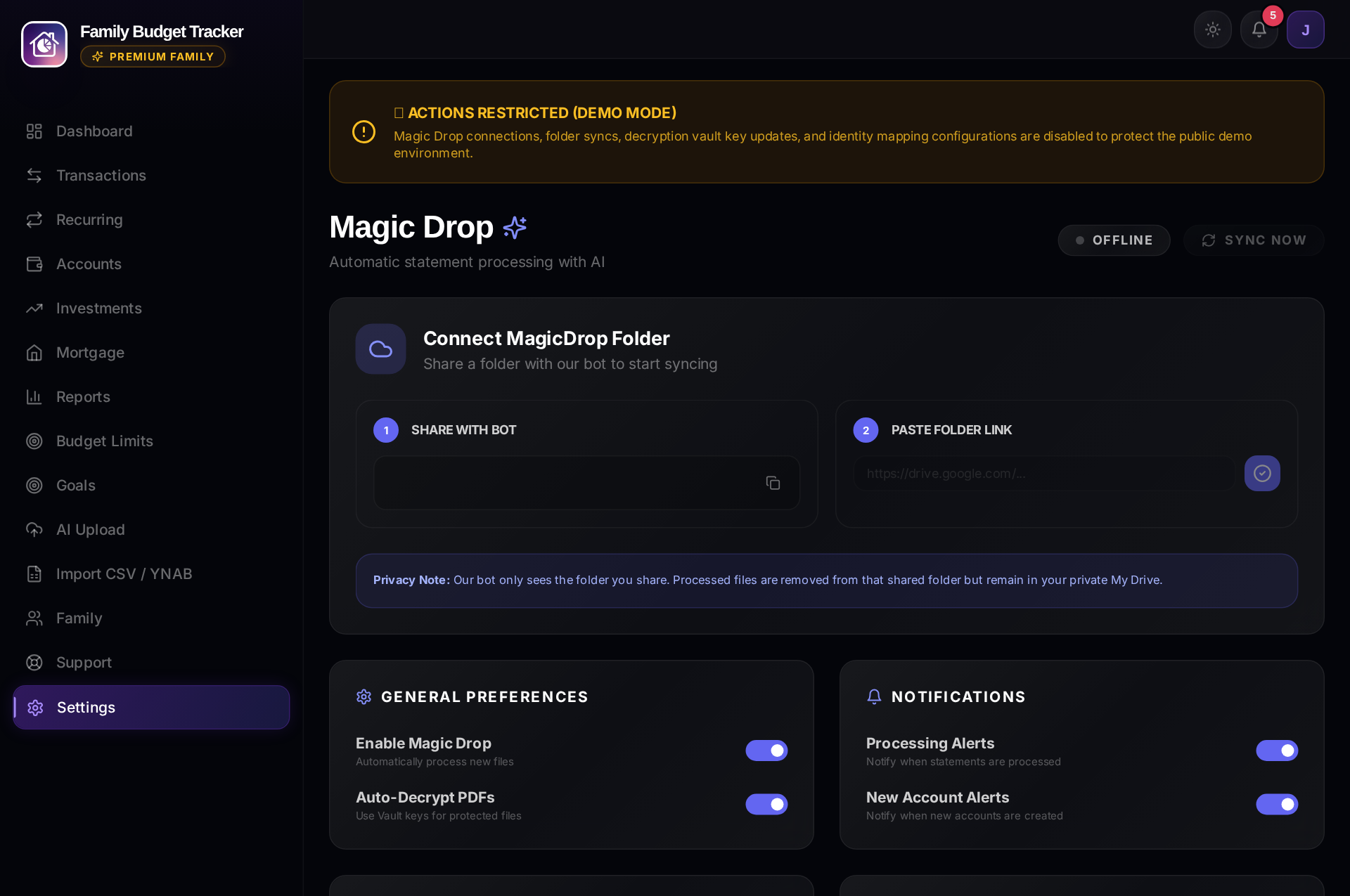
1. How Magic Drop Works
Magic Drop is an automated background ingestion engine that monitors your designated cloud storage:
- Every 60 seconds, the background worker scans your shared folder for new PDF or image statements.
- Files are auto-decrypted using passwords from your secure Vault, parsed via Google Gemini Vision AI, mathematically reconciled, and recorded into your ledger.
- Once processed, the file is archived in a
Processed/subfolder in your Drive so you have a complete permanent personal audit record.
2. Google Drive Setup (3 Easy Steps)
- Create a new folder in your Google Drive named "MagicDrop".
- Share the folder with our service bot email (find your unique service bot address in Settings → Magic Drop in the app) as an Editor.
- Copy the URL of your Google Drive folder, paste it into the Folder URL field in Magic Drop Settings, and click "Connect Folder".
3. Gmail Zero-Code Automated Ingestion
Automatically import bank statements delivered directly to your email inbox without any third-party tools.
Step 1: Create Gmail Labels
MagicDrop/Budgeting(for checking and credit card statements)MagicDrop/NonBudgeting(for savings, investment, and mortgage statements)
Step 2: Set Up Gmail Ingestion Apps Script
Using Google Apps Script inside your own Google account guarantees your email credentials and data never leave your Google cloud perimeter:
- Visit script.google.com and click "New Project".
- Paste the standard Magic Drop ingestion script (available under Settings → Magic Drop → Gmail Setup in the app).
- Set your Google Drive MagicDrop folder ID.
- Add a Time-Driven Trigger to run the script every 10 or 15 minutes.
- Create Gmail filters to auto-apply the
MagicDrop/Budgetinglabel to incoming bank statement emails.
4. Statement Password Vault
Most banks (e.g. Barclays, SBI, HDFC) encrypt PDF statements with your date of birth or PAN number. To enable automated sync while you are away:
- Navigate to Settings → Statement Passwords (Vault).
- Add the password associated with your bank's statement format.
- The key is encrypted in our database using AES-256 and only unlocked in-memory for the millisecond required to open the PDF during ingestion.
5. The "Jailed Bot" Security Guarantee
Our service bot has restricted access strictly to the single folder you explicitly share. It has zero visibility into your wider Google Drive or email inbox. You can revoke access and kill the connection instantly at any moment from your Google Drive permissions.
6. Live Header Status Pill & Processing Pipeline
Both the Web application and Native Mobile App feature a real-time animated Magic Drop pulse status pill in the navigation header (e.g. 🪄 4m ago or 🪄 65% during active ingestion).
Processing Pipeline Stages:
- Checking Drive: Scans your shared Google Drive folder for newly uploaded PDF or CSV statements.
- Downloading: Securely downloads statement bytes to encrypted local scratch memory.
- Validating & Decrypting: Verifies file structure and unlocks encrypted bank PDFs using your AES-256 password vault.
- Identifying Layout: Deep learning layout engines classify bank templates, statement periods, and account numbers.
- Extracting Data: Parses multi-currency transactions, investment holdings, or mortgage balance schedules.
- Saving & Reconciling: Commits transactions to your household ledger, deduplicates existing items, and automatically archives processed files to the
Processed/subfolder. - Finishing: Emits an instant push notification and updates your live Safe to Spend calculations.
Need Setup Support?
Email our integration support at support@getdigraw.com.